

This guide is for tenants who want to be ready to apply for a rental. By the end, your renter profile will have your current address, your job and proof of income, and an emergency contact. Realhaus shows parts of it to a landlord when you apply, so filling it in once saves time on every application. Complete your personal info first: the Bio card on your profile comes from it.
Step 1: Open your renter profile
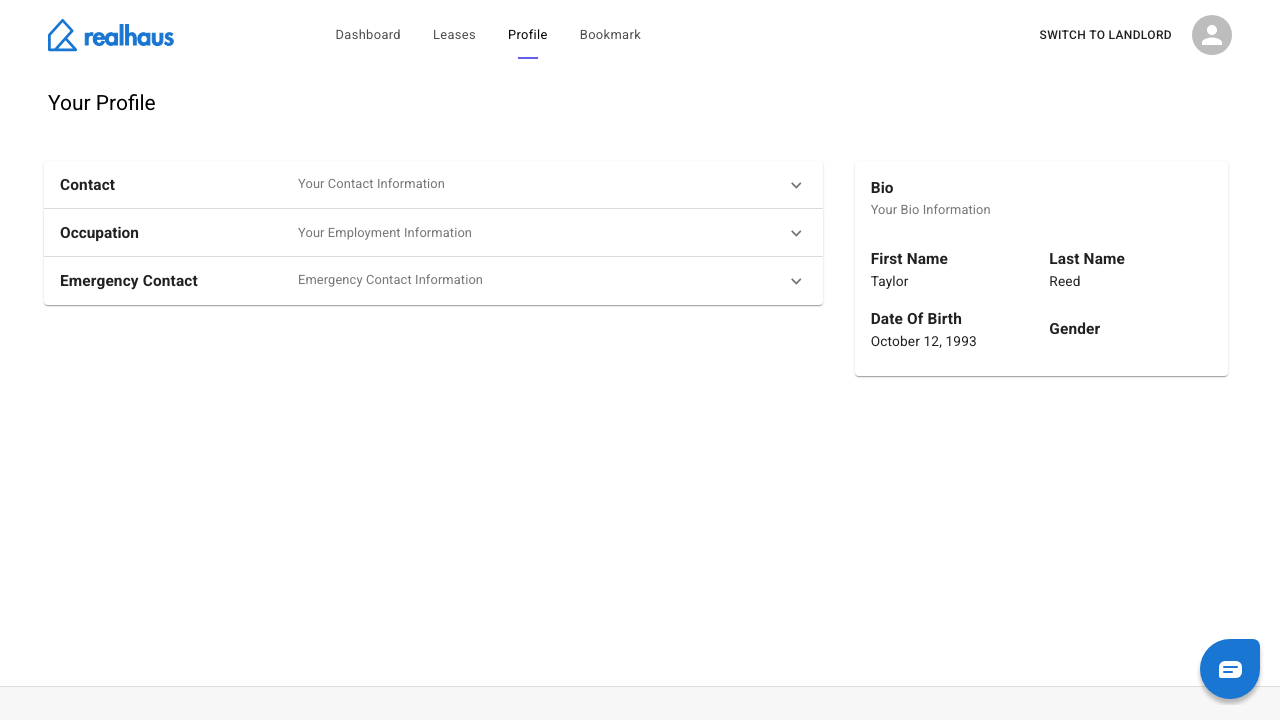
Select Profile in the top menu while you’re in tenant mode, or go to app.realhaus.ca/t/profile. The page is called Your Profile.
The Bio card on the right is read-only. Your details go in three sections on the left: Contact, Occupation and Emergency Contact. Opening one section closes the others.
Step 2: Add your current address
- Select Contact, then select ADD ADDRESS next to Current Address.
- Under When did you move in?, select the calendar icon, select the year at the top of the calendar, choose the year, then select the day.
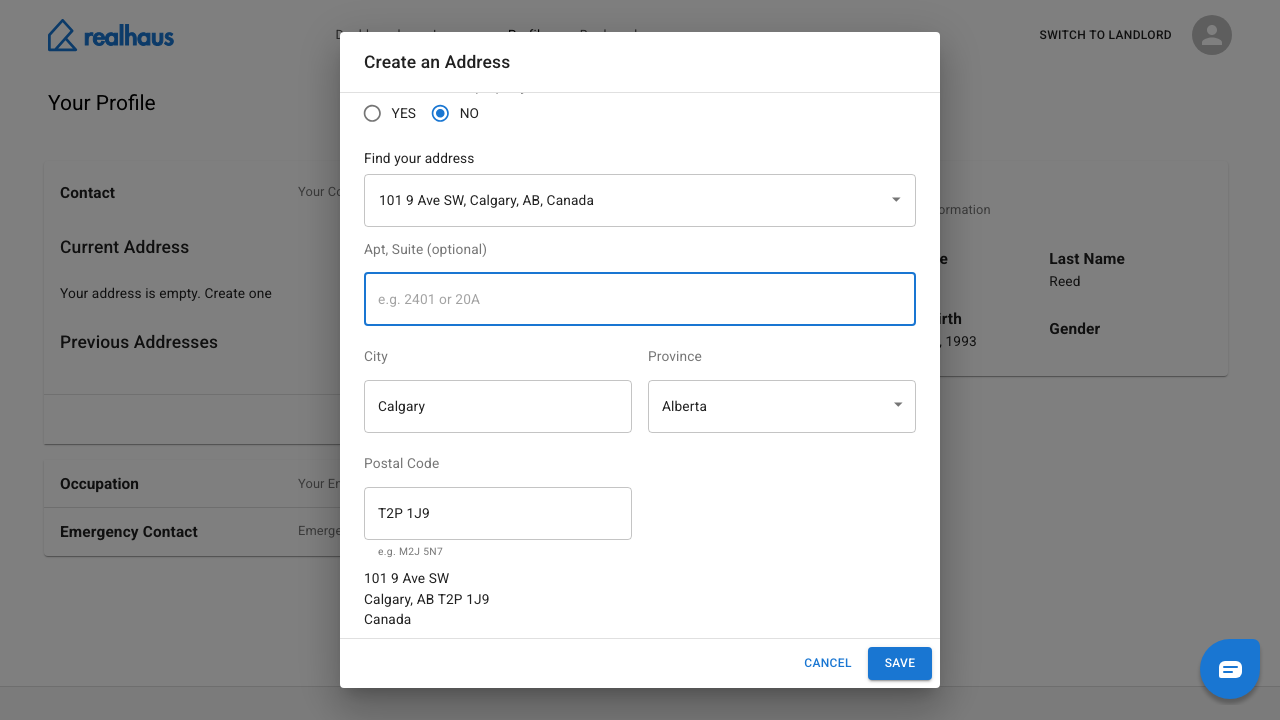
- Under Find your address, start typing and select the matching suggestion. City, Province and Postal Code fill in for you.
- If you live in a unit, enter it in Apt, Suite (optional).
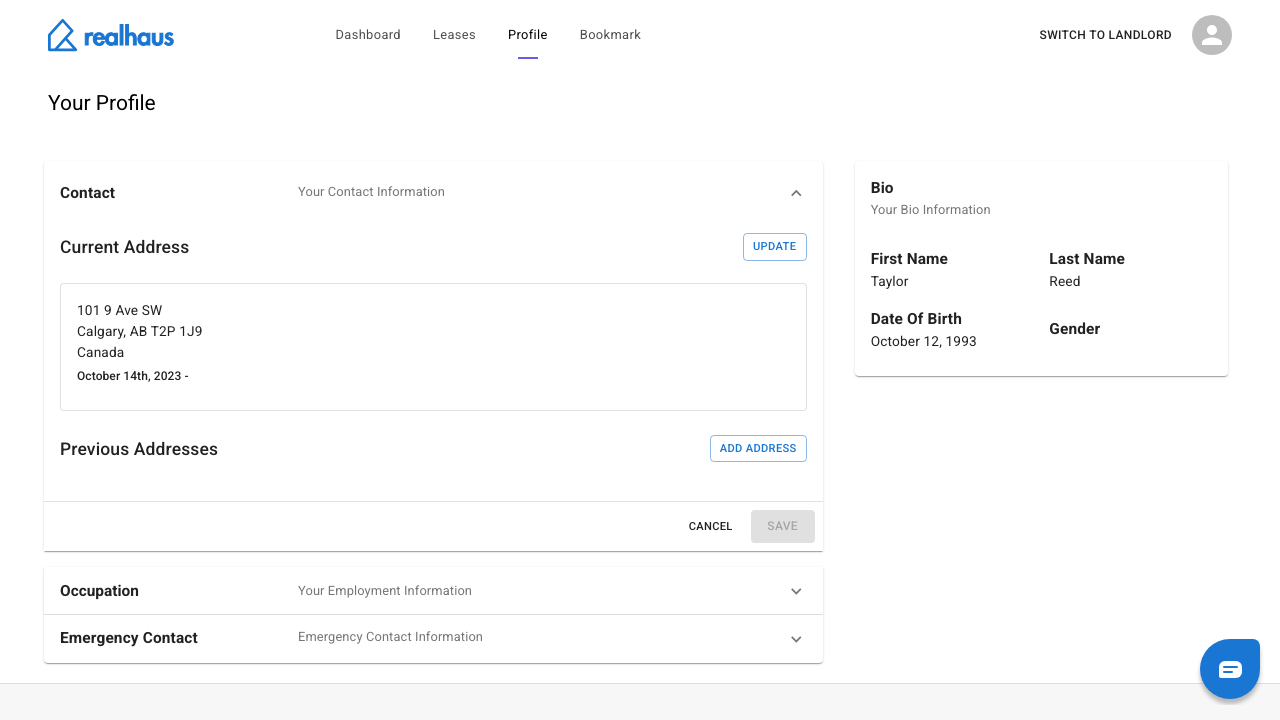
- Select Save. The address appears under Current Address, and the button changes to UPDATE.
Tip: If the list says No location found, clear the box and type the address again.
To add an earlier address, select ADD ADDRESS next to Previous Addresses and enter the dates and address. If it was a rental, choose YES under Was this a rented property? and enter your landlord’s name and email. Realhaus uses these to invite your landlord to join.
Step 3: Add your job and proof of income
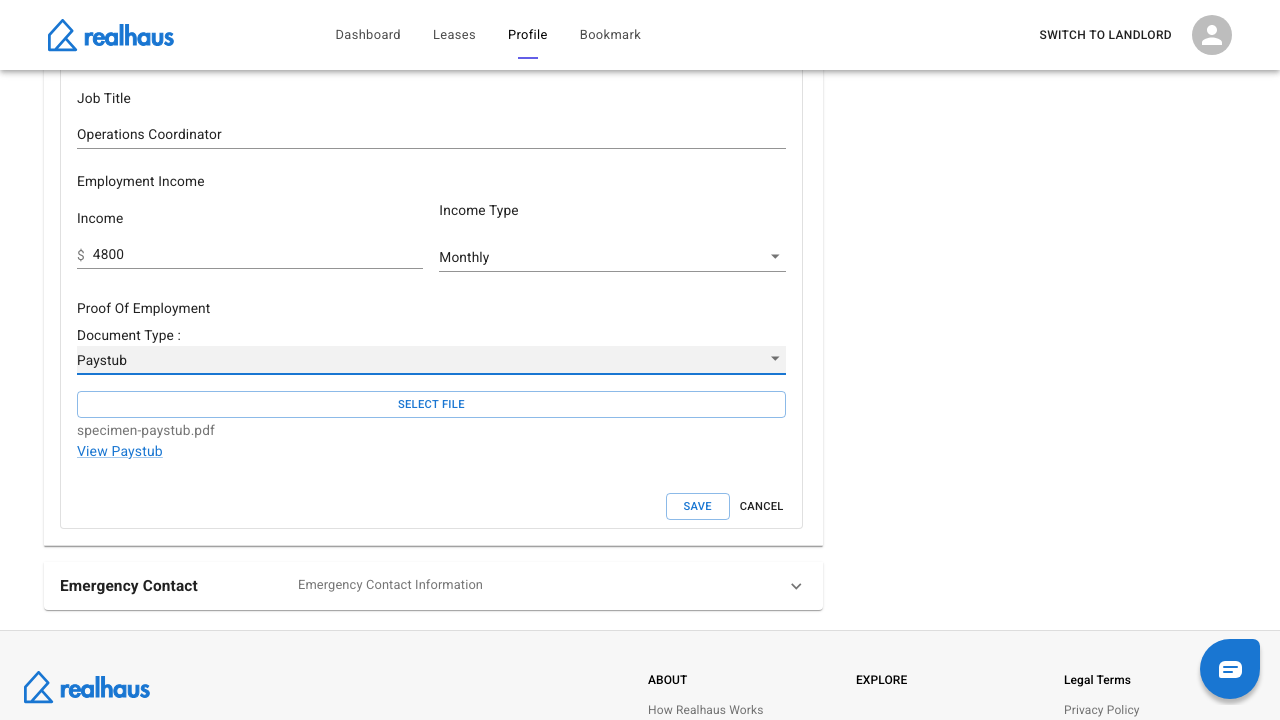
- Select Occupation. A new profile starts with one empty card: select Edit on it. To add another job, select ADD OCCUPATION.
- Choose your Start Date and your Employment Status: Employed, Self-Employed, Retired, Unemployed or Student.
- Enter your Employer, Manager, Type of Business and Job Title.
- Enter your Income and choose the Income Type: Weekly, Bi Weekly, Monthly or Yearly.
- Under Proof Of Employment, choose the Document Type, either Paystub or Employment Letter. Select SELECT FILE and choose a file of 3 MB or less, such as your most recent paystub or a current letter from your employer. A View Paystub or View Employment Letter link appears when it has uploaded.
- Select Save.
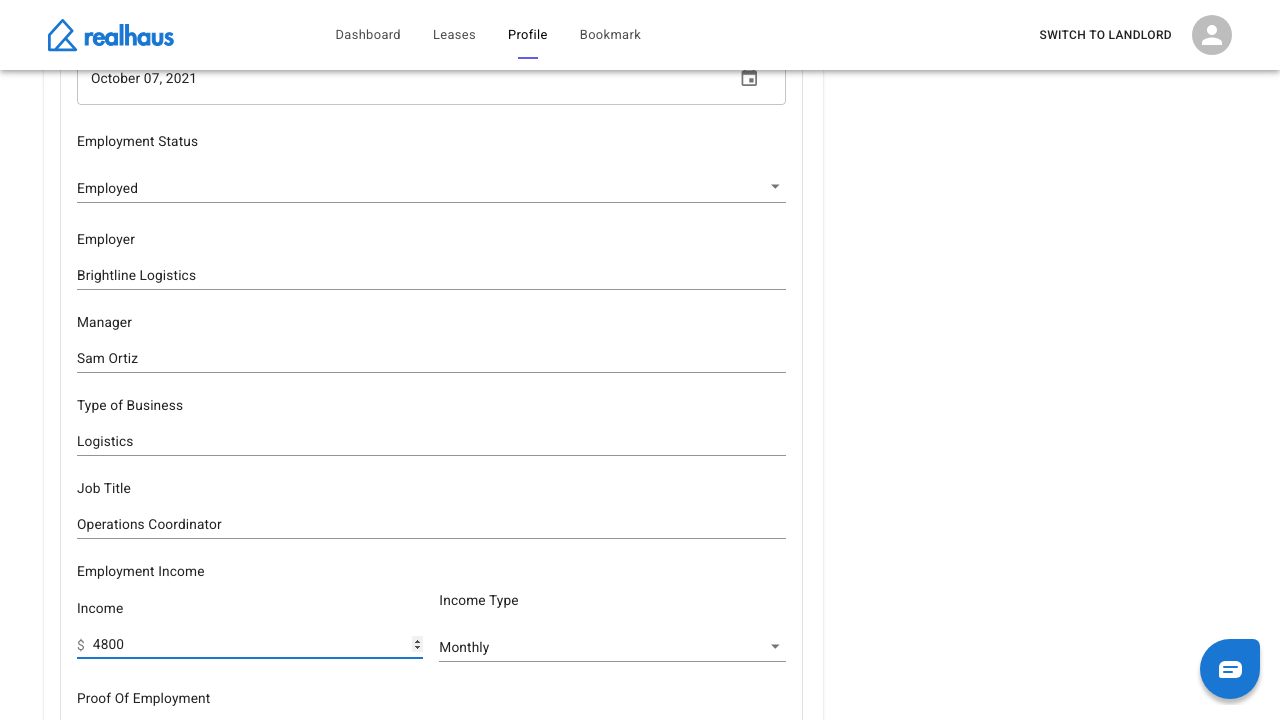
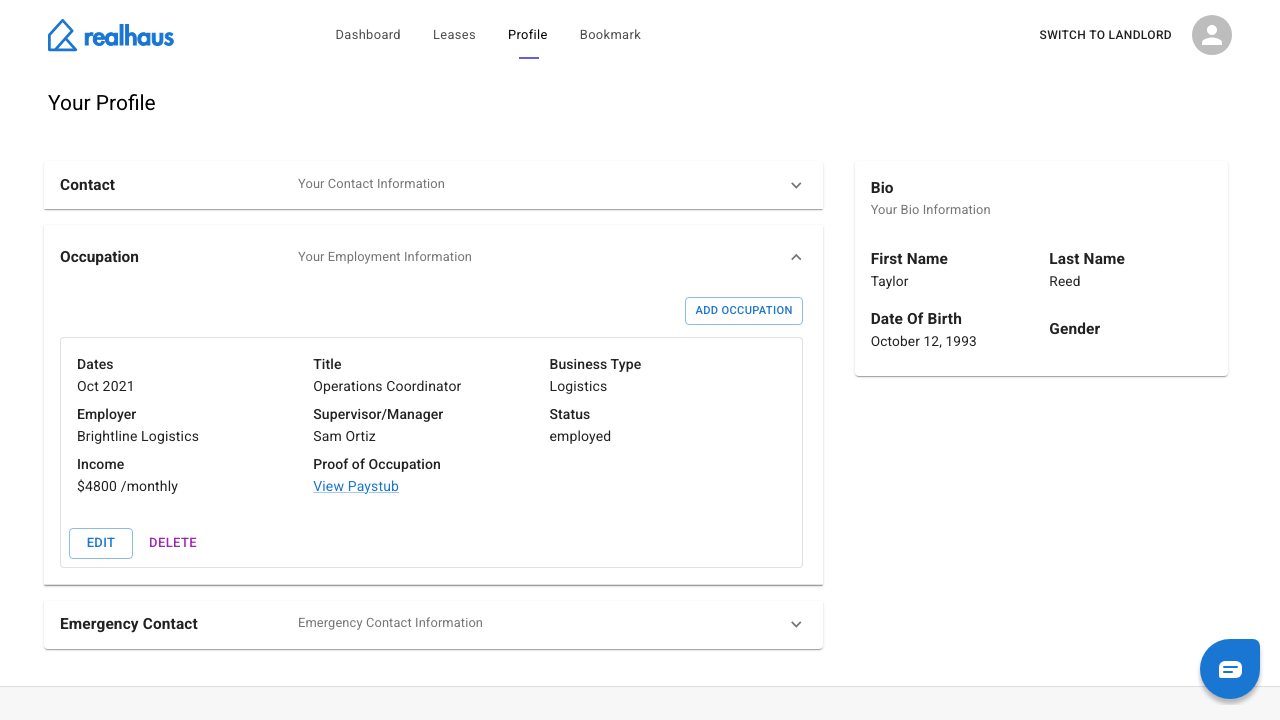
Your job now shows on a card with your income and a link to the document. Select Edit to change it later; replacing a document asks you to confirm.
Important: Give every occupation card an Employment Status. The Income step of a rental application doesn’t pass while a card has no status.
Step 4: Add an emergency contact
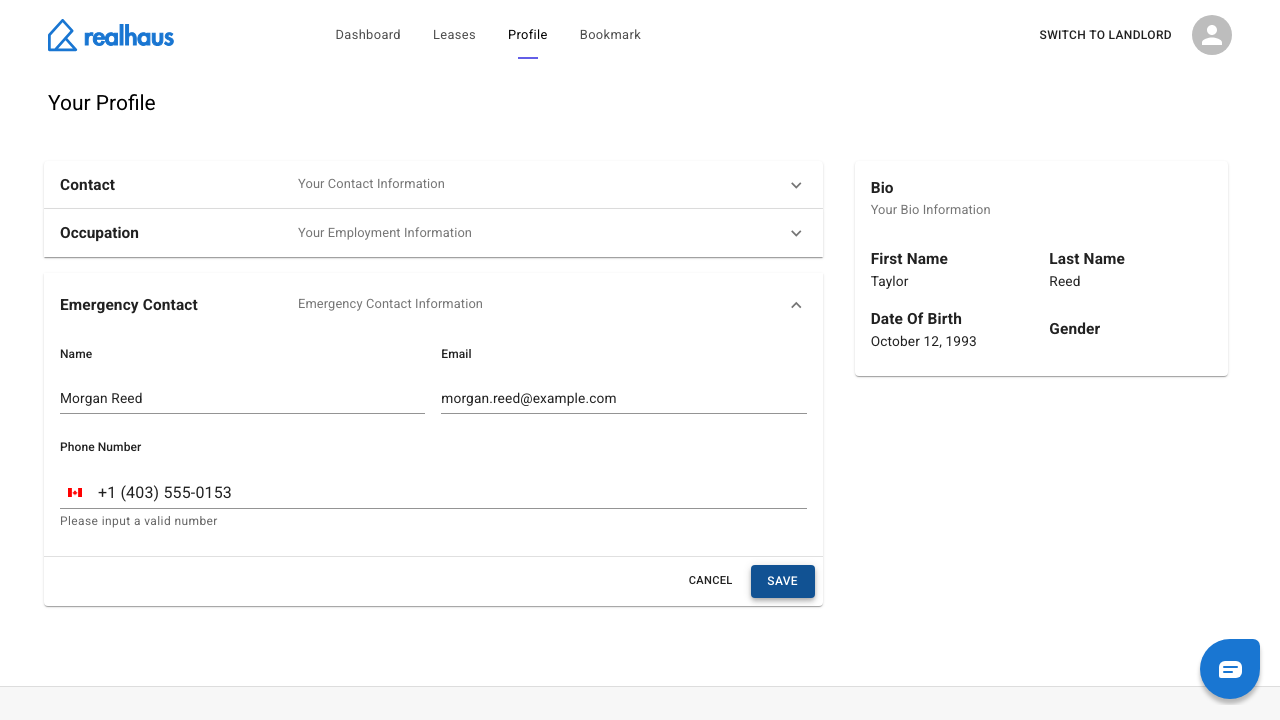
- Select Emergency Contact.
- Enter the Name, Email and Phone Number of someone to contact in an emergency. Phone numbers are Canadian (+1).
- Select Save.
There’s no confirmation message here: your changes are saved when you select Save.
What landlords see
When you apply for a rental, Realhaus fills in the application from this profile, and changes you make during the application are saved back to it. The landlord’s review screen shows your name, your employment details and income, a link to your proof of income, and your rent history, which comes from your previous addresses. The application also needs your current address and an emergency contact, and you must verify your identity before you can submit it.
What to do next
- How to submit a rent application
- How to verify your identity
- Browse all tenant guides in Renting on Realhaus.
Need help? Contact us at hello@realhaus.ca.