

Realhaus verifies everyone's identity, so landlords and tenants know who they're dealing with. This guide is for anyone who has created an account and completed their personal info. By the end, your profile will show Identity Verified. You'll need a valid government-issued ID and a device with a camera.
You need a verified identity before you can apply for a rental, book a showing, sign a lease, pay rent or receive payments.
Step 1: Check your personal info
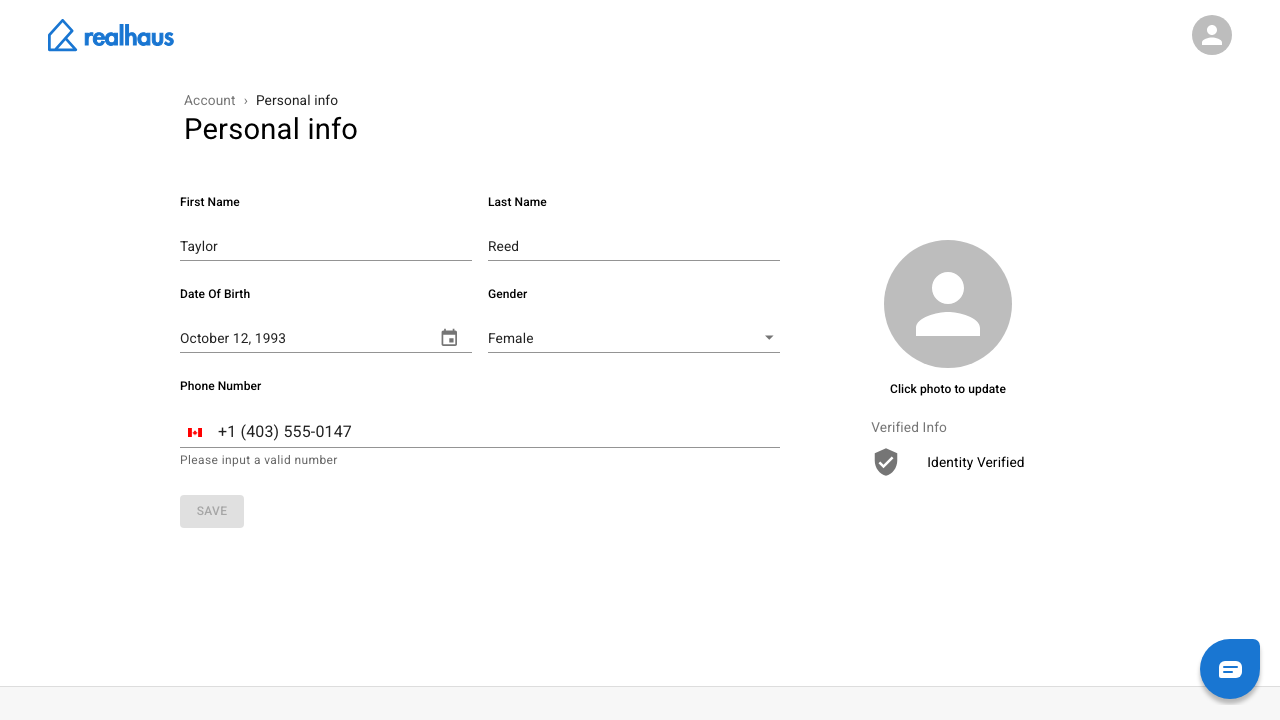
Open your profile picture menu, select My account, then Personal Info. Make sure your First Name, Last Name and Date Of Birth are exactly as they appear on your ID, then select Save if you changed anything. See How to set up your personal info.
Important: If your name or date of birth doesn't match your ID, the verification is declined. Changing your name, date of birth or gender after you're verified means you'll need to verify again.
Step 2: Start the verification
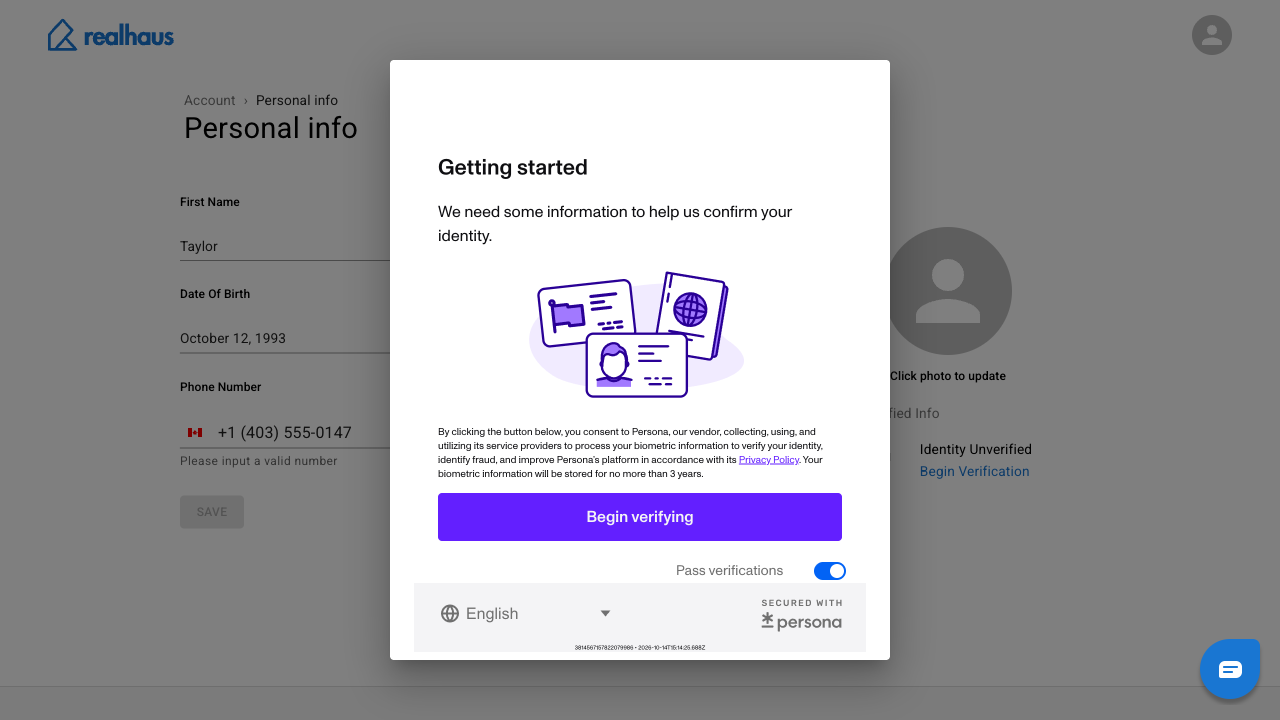
Under Verified Info, select Begin Verification. Realhaus uses Persona, an identity verification provider, to check your ID. Read how your information is used and, if you agree, select Begin verifying.
Step 3: Choose your ID
- Choose the country that issued your ID and select Select.
- Choose the type of ID you have. The options depend on the country, for example a driver's licence or a passport.
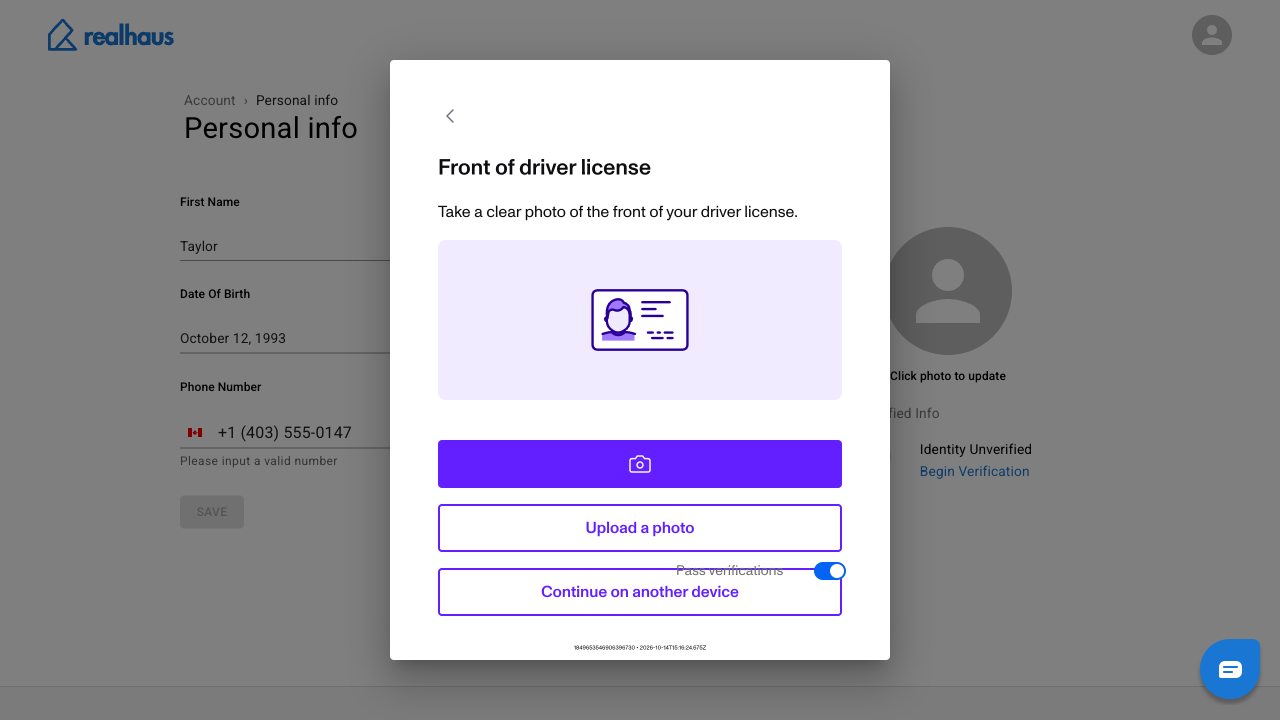
Step 4: Add a photo of your ID
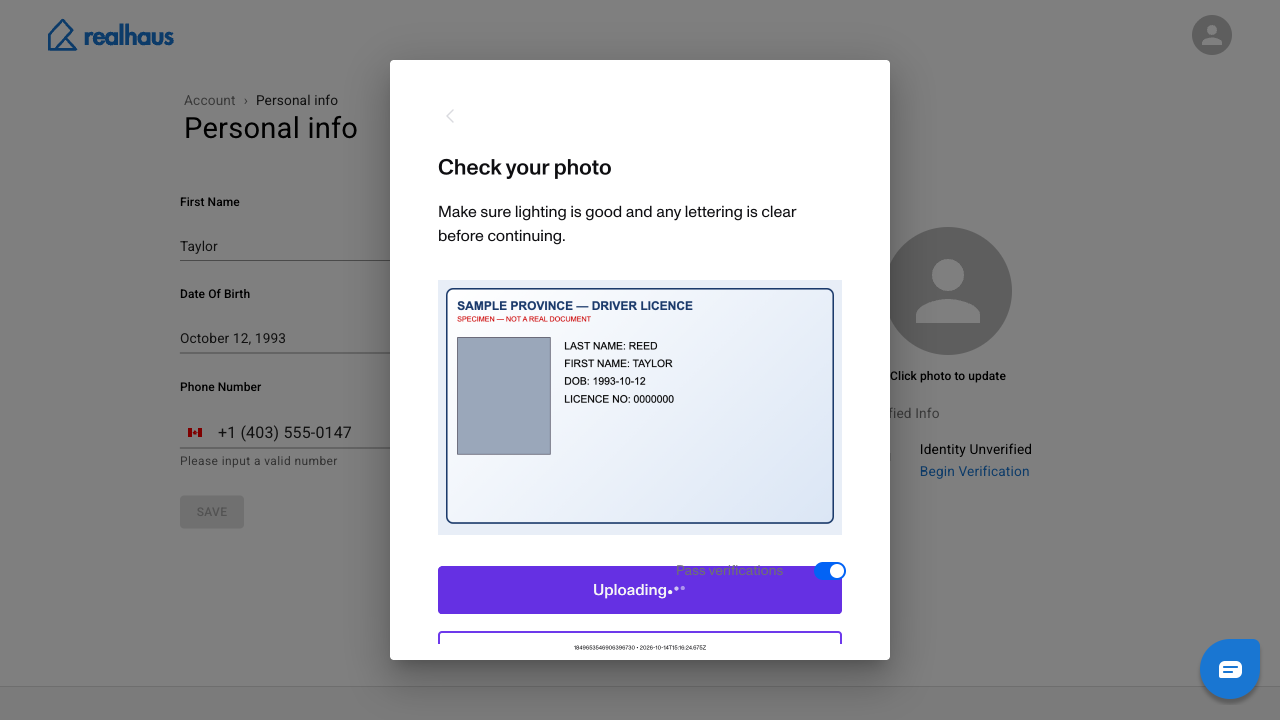
Take a photo of the front of your ID, or upload one. Make sure it's well lit and every detail can be read, then select Use this photo. Persona may also ask for the back of the card.
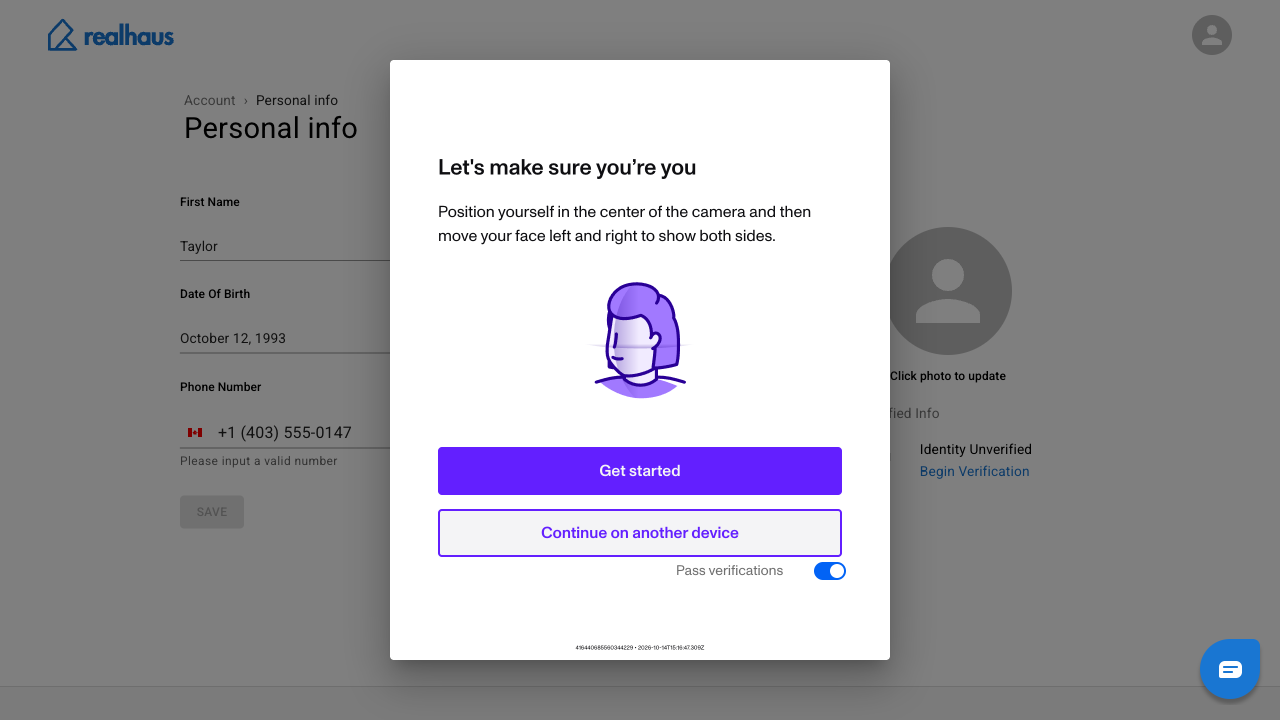
Step 5: Take a selfie
Persona asks for a short selfie to match your face to the photo on your ID. Select Get started, allow access to your camera, and follow the prompts, turning your head slowly to each side. If your computer has no camera, select Continue on another device to finish on your phone.
Step 6: Check that you're verified
When Persona shows its confirmation, select Done. Your Personal info page shows Identity Verified under Verified Info.
Tip: If the page still says Identity Unverified a minute after you finish, reload it. The check usually completes within seconds.
What to do next
- Renting? See Renting on Realhaus.
- Listing a property? See Managing on Realhaus.
Need help? Contact us at hello@realhaus.ca.