

This guide is for tenants who have found a rental they want to apply for. By the end, you will have agreed to the background-check authorization (the first time you apply), completed the application and submitted it. First verify your identity, complete your personal info and fill in your renter profile: Realhaus fills in most of the application from them.
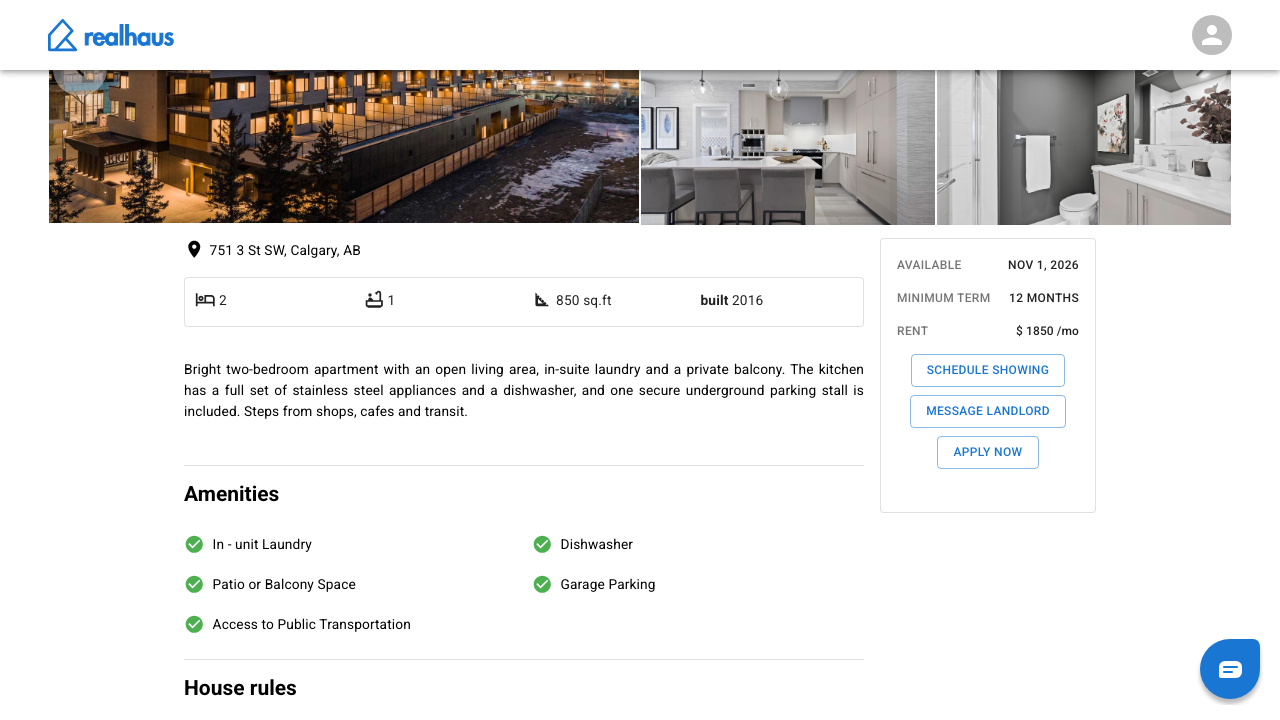
Step 1: Open the listing and select Apply Now
Open the rental's listing, for example from your search results. On the right, below the rent, select Apply Now.
If your account setup isn't finished, Realhaus shows Complete Profile & ID Verification. Select Continue to go to your personal info page, finish it, then try again. If you already have a pending application for this listing, the button is replaced by the date you applied.
Step 2: Read and agree to the background-check authorization
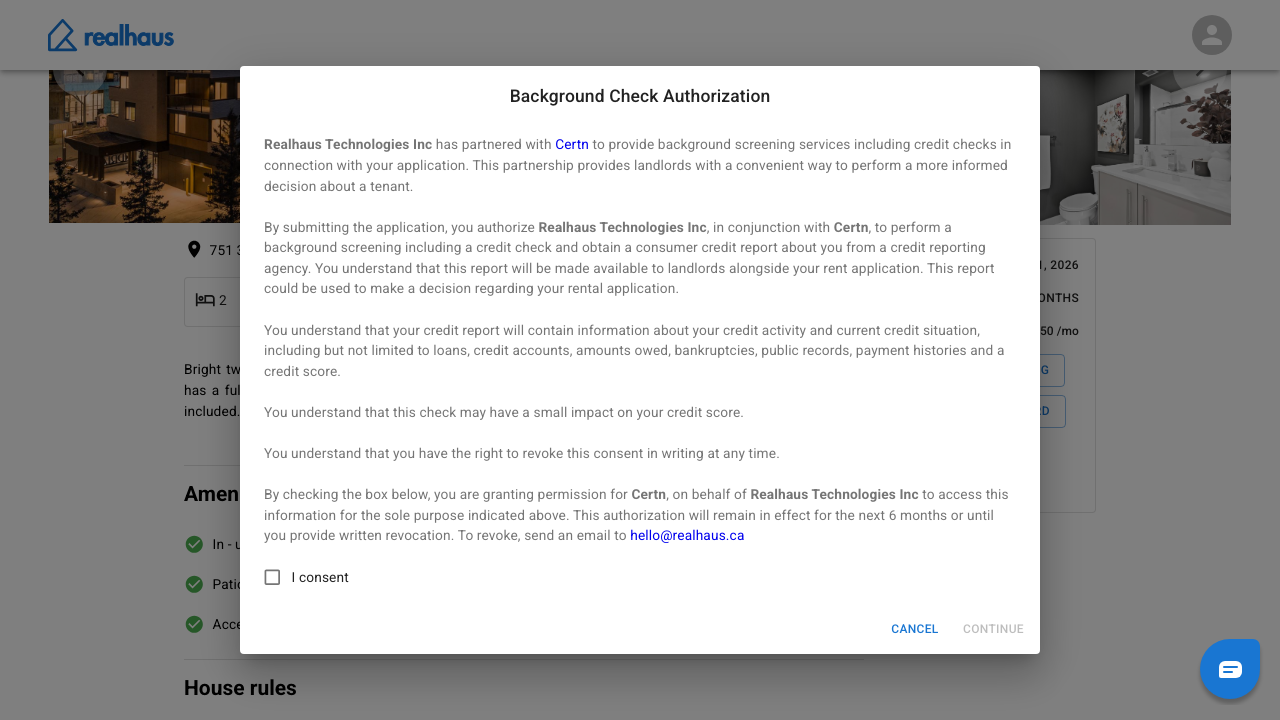
The first time you apply, Realhaus asks you to agree to a Background Check Authorization before the application opens.
- Read all of it. It names who runs the check (Certn), what a credit report can contain, how long your consent lasts and how to revoke it.
- Check I consent, then select Continue. Continue stays unavailable until you check the box. Select Cancel if you don't agree: the application doesn't open.
The authorization says it stays in effect for the next 6 months or until you revoke it in writing. Realhaus asks you again after six months. For how your information is handled, see the Terms of Service and Privacy Policy.
Step 3: Confirm your move-in date
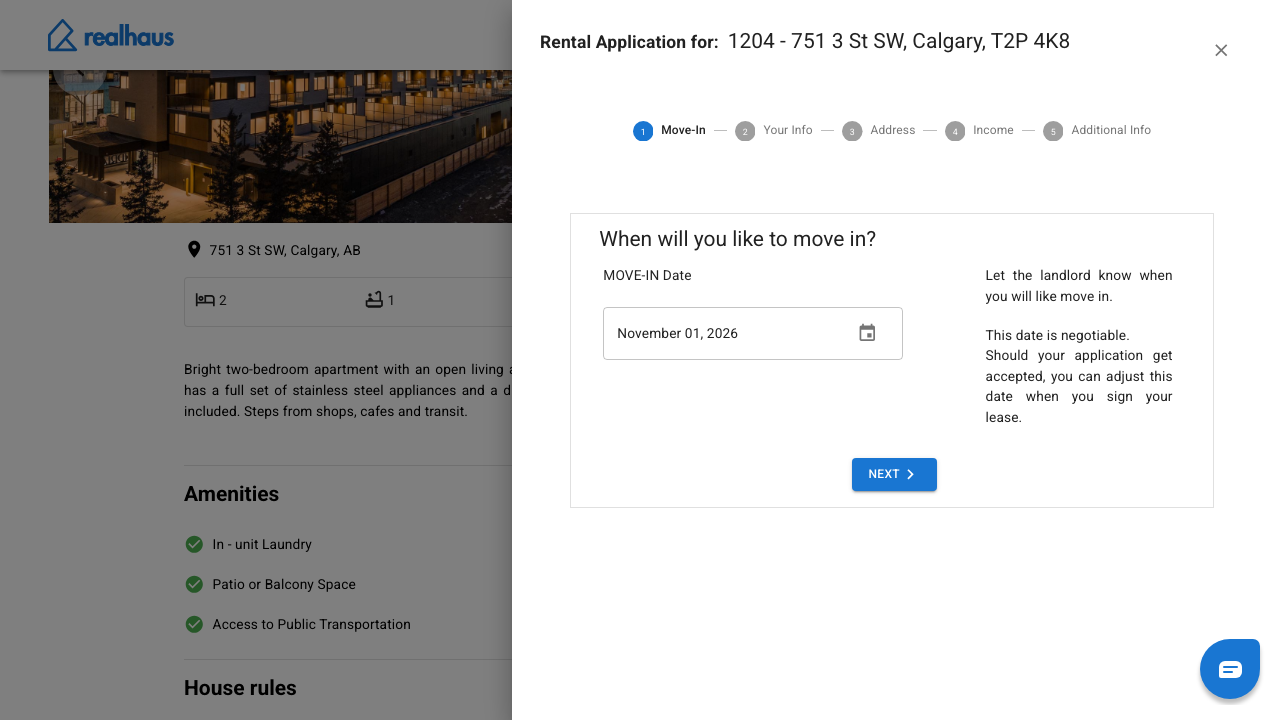
The application opens in a panel with five steps across the top: Move-In, Your Info, Address, Income and Additional Info. Select NEXT to move on, or BACK to return.
On Move-In, choose your move-in date. It starts on the day the rental is available, or today if that day has passed. The panel says the date is negotiable, and you can adjust it when you sign your lease if you're accepted.
Step 4: Check Your Info
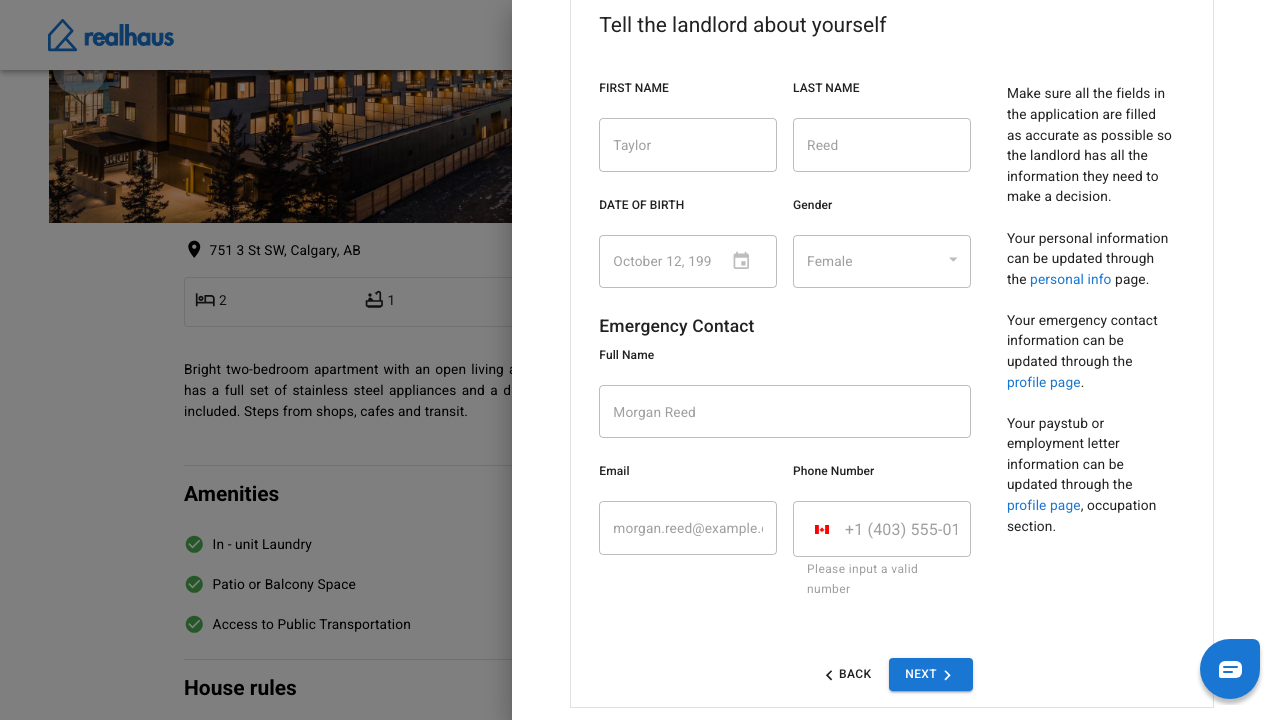
Your Info shows your name, date of birth and gender from your personal info, and your emergency contact from your renter profile. They're locked once your identity is verified. To change them, use your personal info or profile page.
Step 5: Check your address and income
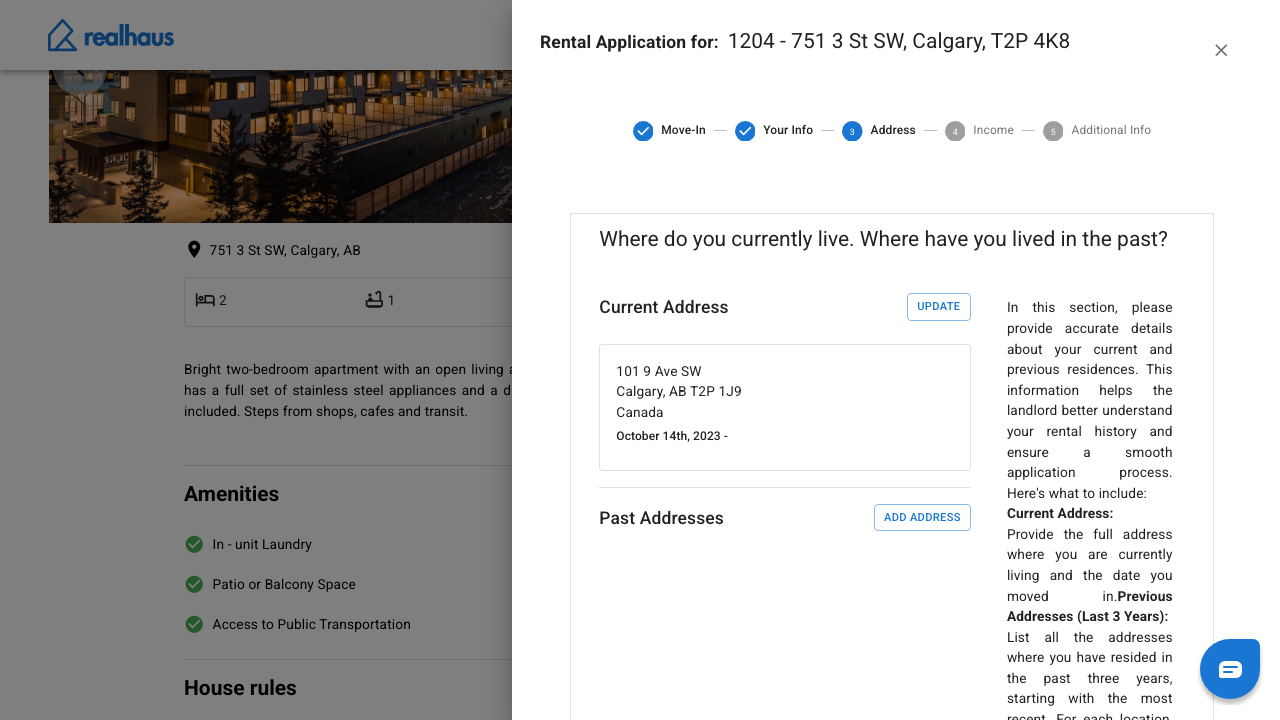
Address shows your Current Address and any Past Addresses. Select UPDATE or ADD ADDRESS to change them.
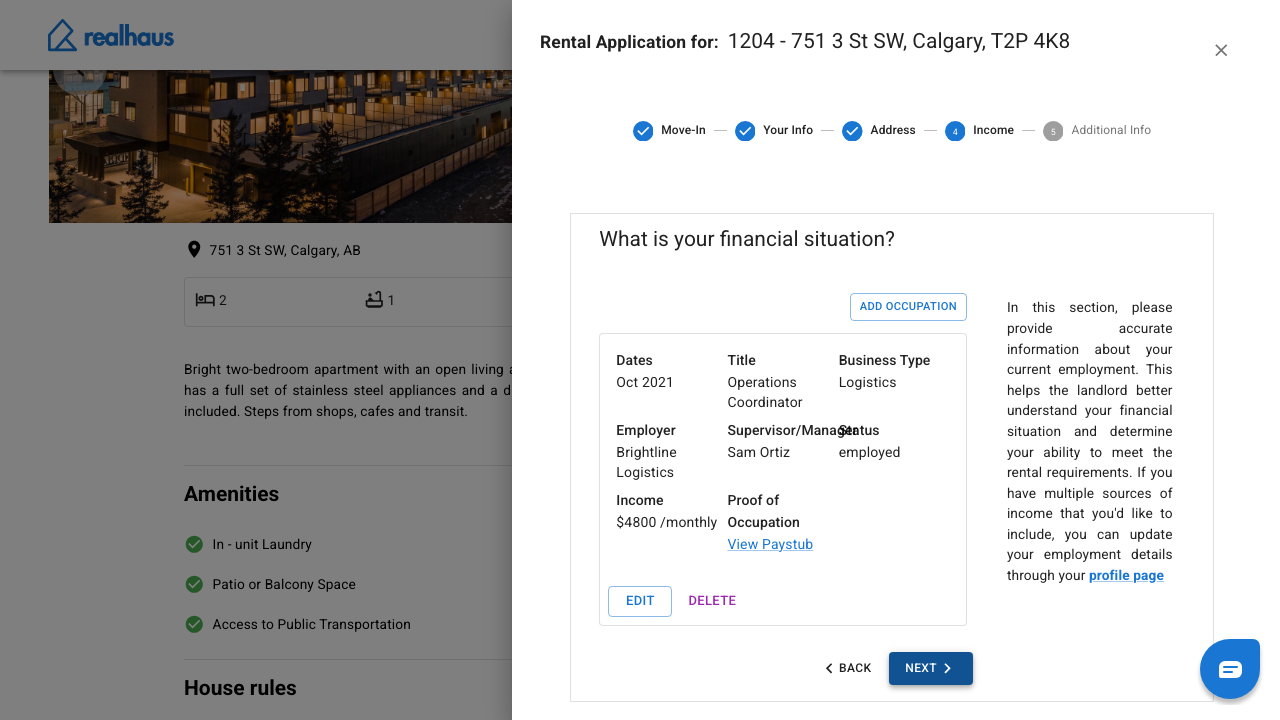
Income lists the jobs on your renter profile, with a View Paystub or View Employment Letter link if you uploaded proof of income. Select EDIT to change a job or ADD OCCUPATION to add one.
Important: Every job needs an Employment Status. You can't move past Income until each one has it.
Changes you make in these steps are saved to your renter profile.
Step 6: Answer the last questions and submit
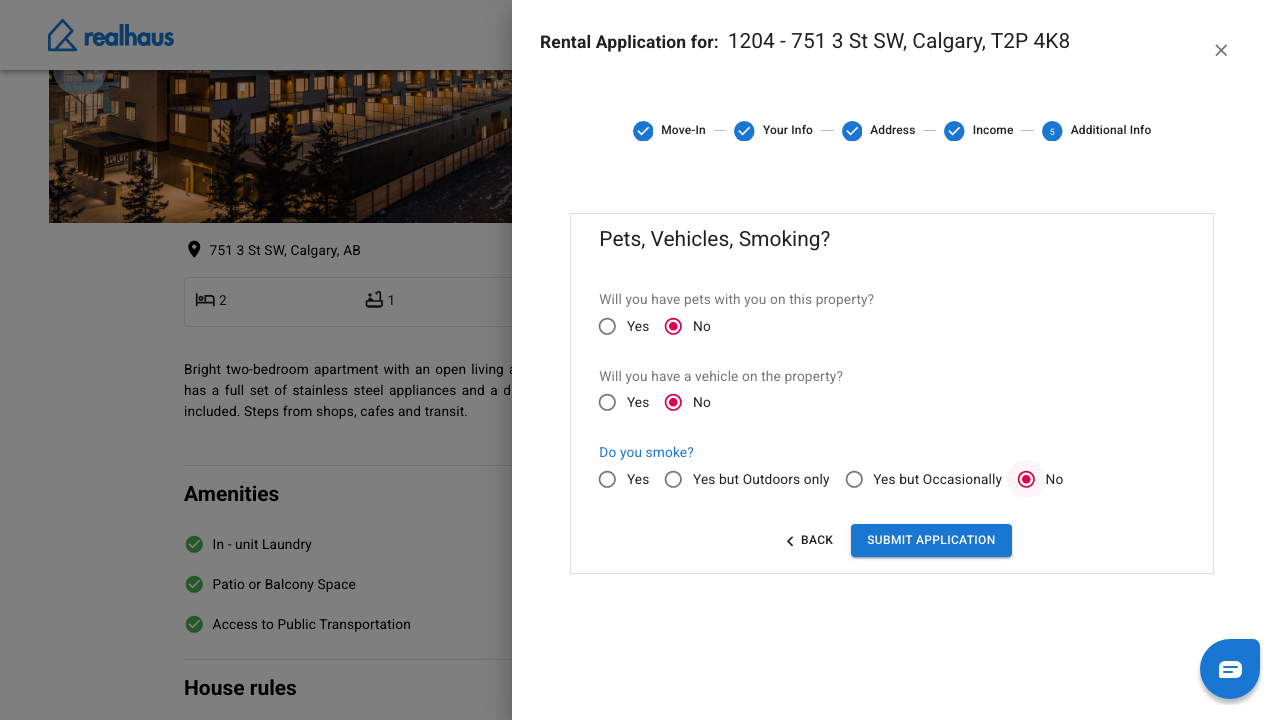
On Additional Info, answer all three questions: whether you'll have pets, whether you'll have a vehicle, and whether you smoke (Yes, Yes but Outdoors only, Yes but Occasionally or No). Select Submit Application.
If a step is incomplete, Realhaus tells you which one. Otherwise a message says Your rent application has been submitted, and the listing shows the date you applied.
Step 7: Track your application
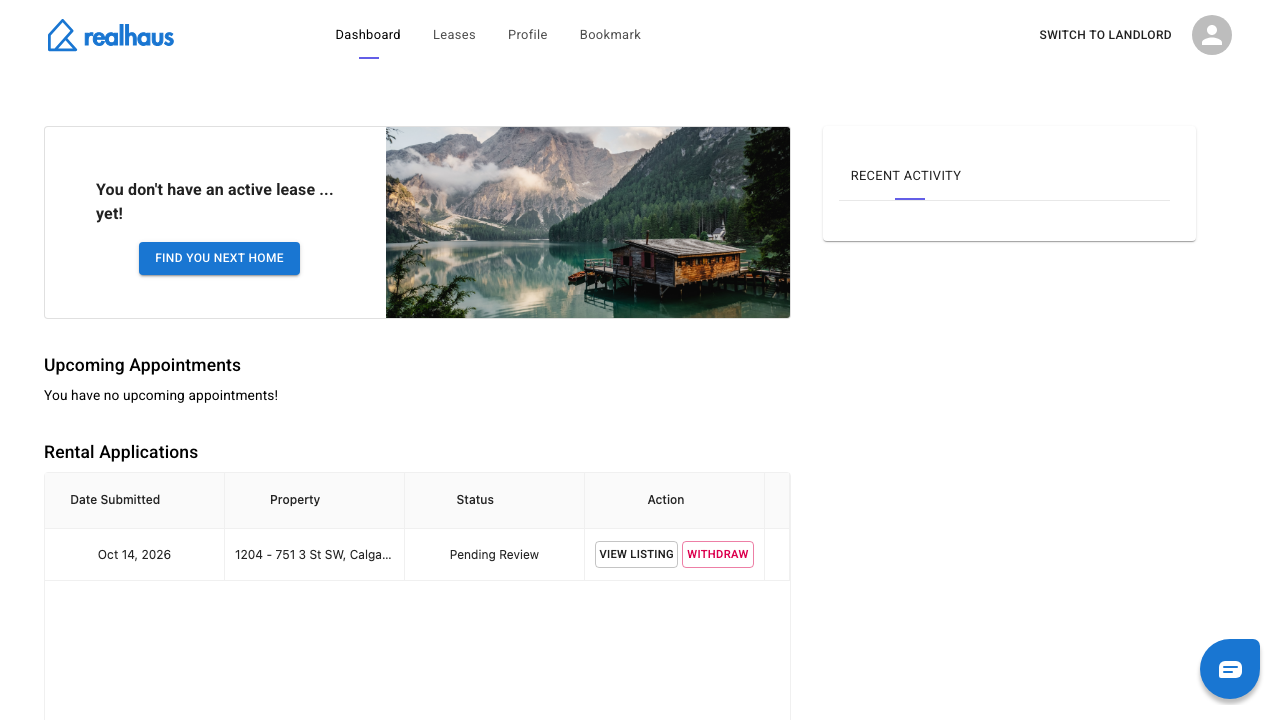
Open your dashboard. Under Rental Applications, your application shows the date submitted, the property and its status: Pending Review, Approved, Rejected or Withdrawn. Select View Listing to reopen the listing. While it's pending, select Withdraw to take it back.
What your landlord sees
Your landlord sees the application on their Applications page: your name, move-in date, income and employment, a link to your proof of income, and the rent history from your profile. They can also look at a credit report if they request one. For the landlord's side, see How to review applications and screen applicants (coming soon).
What to do next
- If your landlord accepts, review and sign your lease.
- Browse all tenant guides in Renting on Realhaus.
Need help? Contact us at hello@realhaus.ca.