

This guide is for tenants looking for a rental on Realhaus. By the end, you’ll have searched an area, narrowed the results with filters and the map, opened a listing to see what it offers, and saved it for later. You need to be signed in: if you don’t have an account yet, create one first.
Step 1: Search by location and move-in date
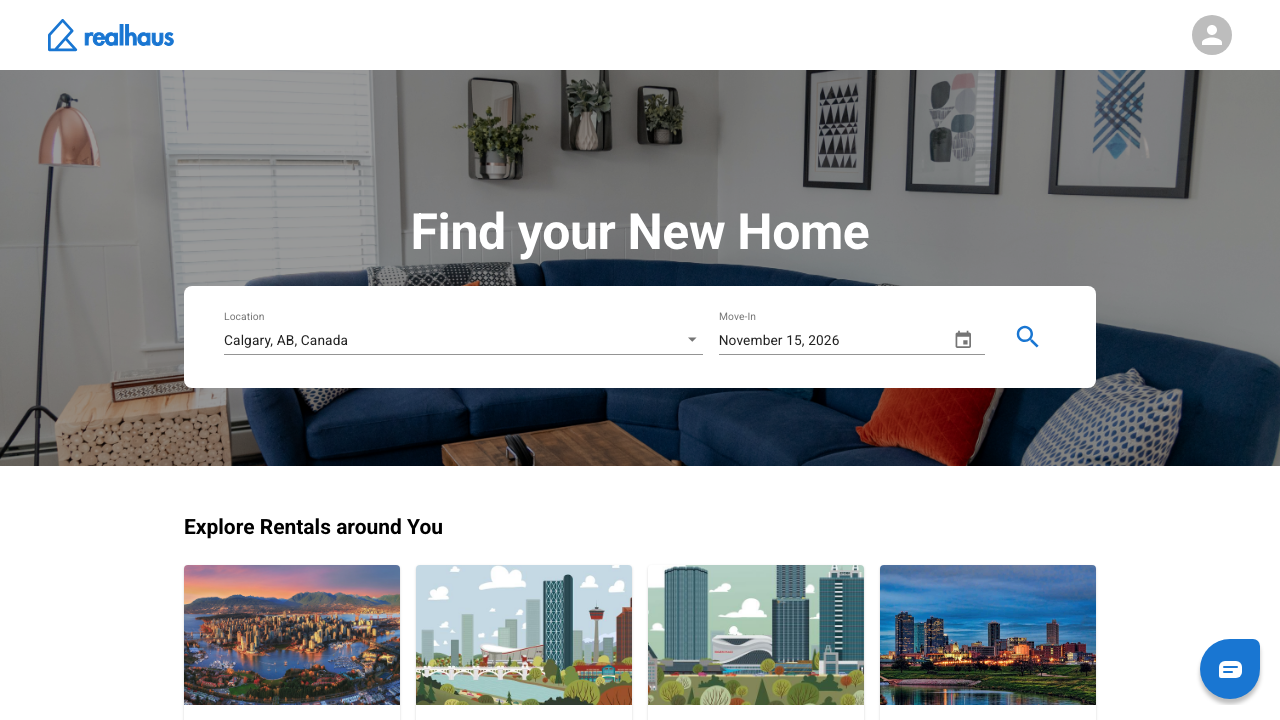
- Sign in at app.realhaus.ca to open the home page.
- Under Location, start typing a city, neighbourhood or postal code, then select a suggestion. Realhaus suggests places in Canada.
- Choose your Move-In date.
- Select the search button (the magnifying glass). You can also select a city under Explore Rentals around You.
Note: Results only include rentals that are available on or before your move-in date. If a rental you expected is missing, try a later date.
Step 2: Read the results
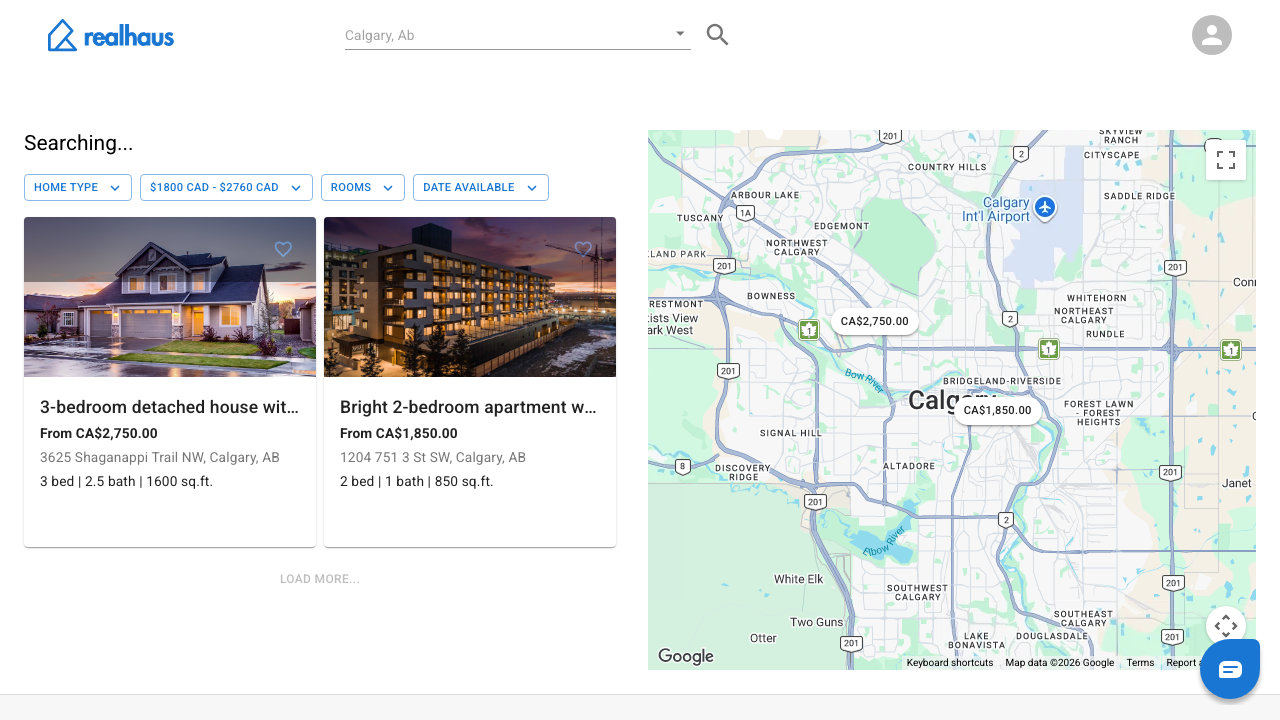
The results page shows cards on the left and a map on the right. Each card shows a photo, the title, the rent (“From CA$…”), the address, and the bedrooms, bathrooms and size. Rentals you could move into now are marked Move in now. The map has a price pin for each rental.
- Drag the map to move around, and hold Ctrl (⌘ on a Mac) while you scroll to zoom. The list updates to the part of the map you’re looking at.
- Select Load more… under the list to see more rentals.
- To search somewhere else, use the search box at the top of the page.
Step 3: Narrow the results with filters
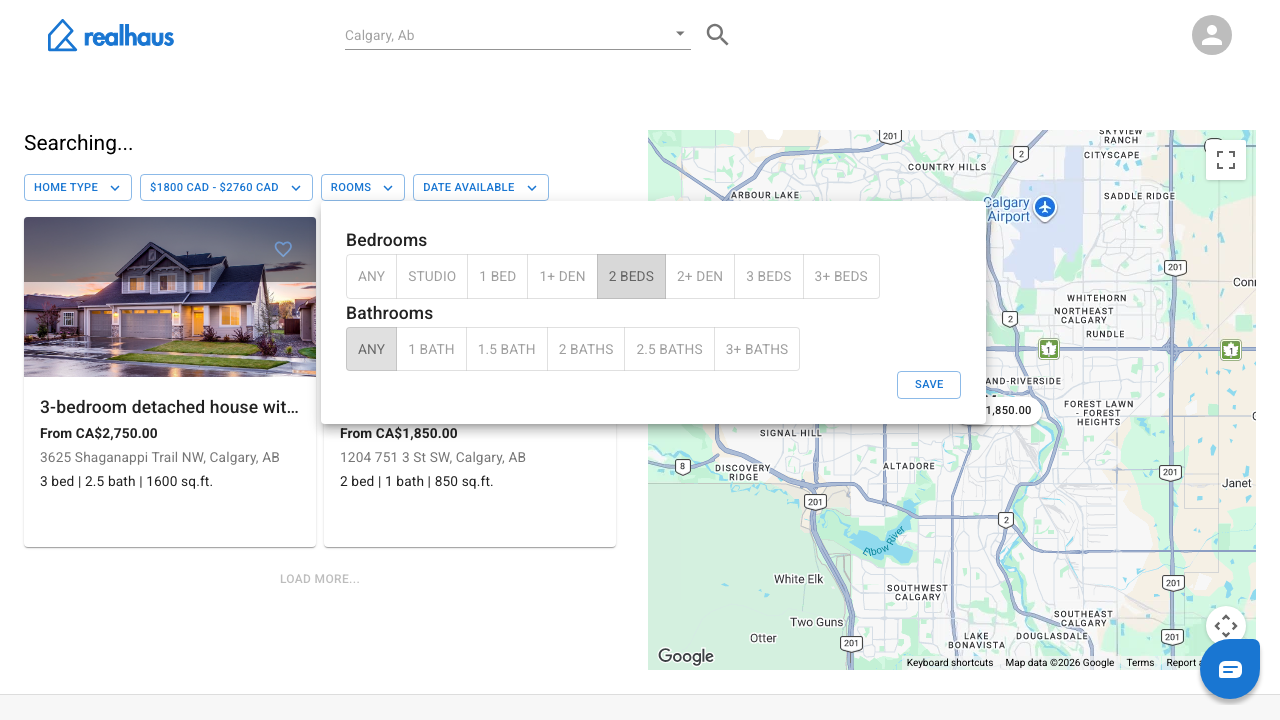
Above the list are four filters. Each opens a small panel.
- Home Type: any, house, apartment, basement, condo, duplex, mobile home, room or townhouse.
- Price Range: enter a lowest and a highest monthly rent in Min. Price and Max. Price, then select Save.
- Rooms: choose bedrooms (from STUDIO to 3+ BEDS) and bathrooms (from 1 BATH to 3+ BATHS), then select Save.
- Date Available: choose a Move In Date.
To clear a filter, set it back to any, or empty the price boxes and select Save.
Step 4: Preview a rental on the map
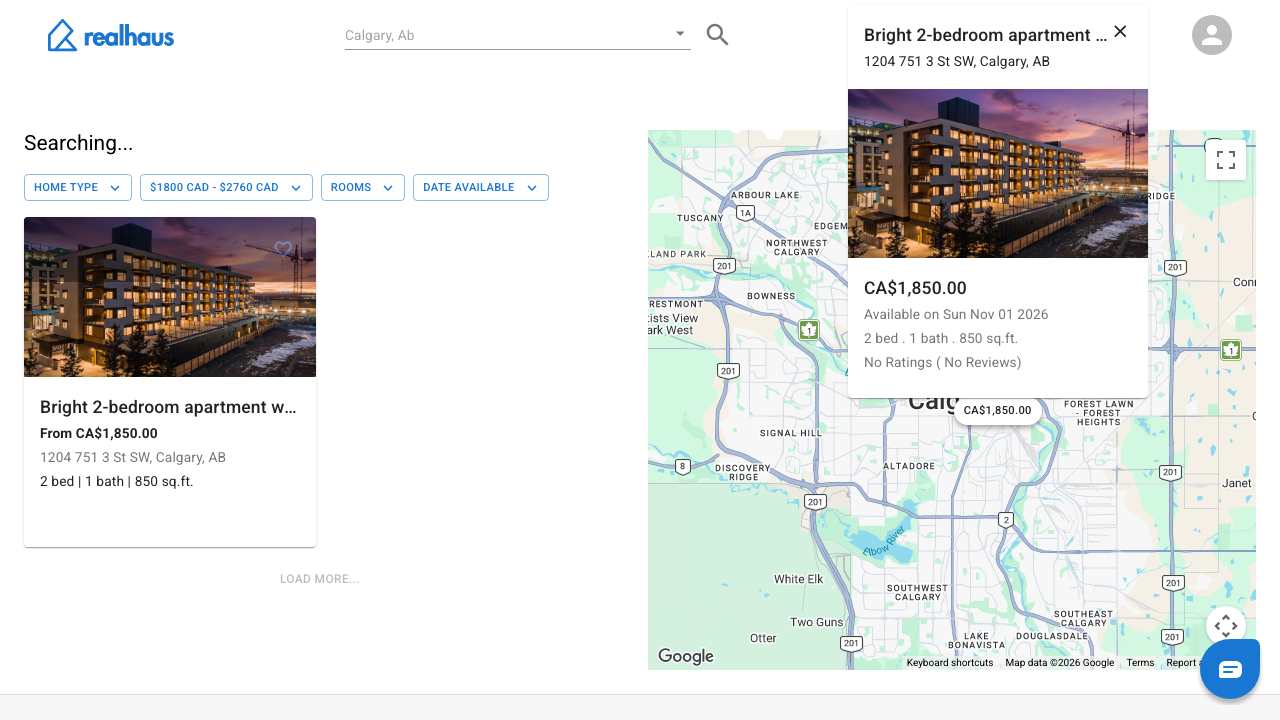
Select a price pin. A card opens with the photo, title, address, rent, the date it’s available, the size and any rating. Select the X to close it.
Step 5: Open a listing
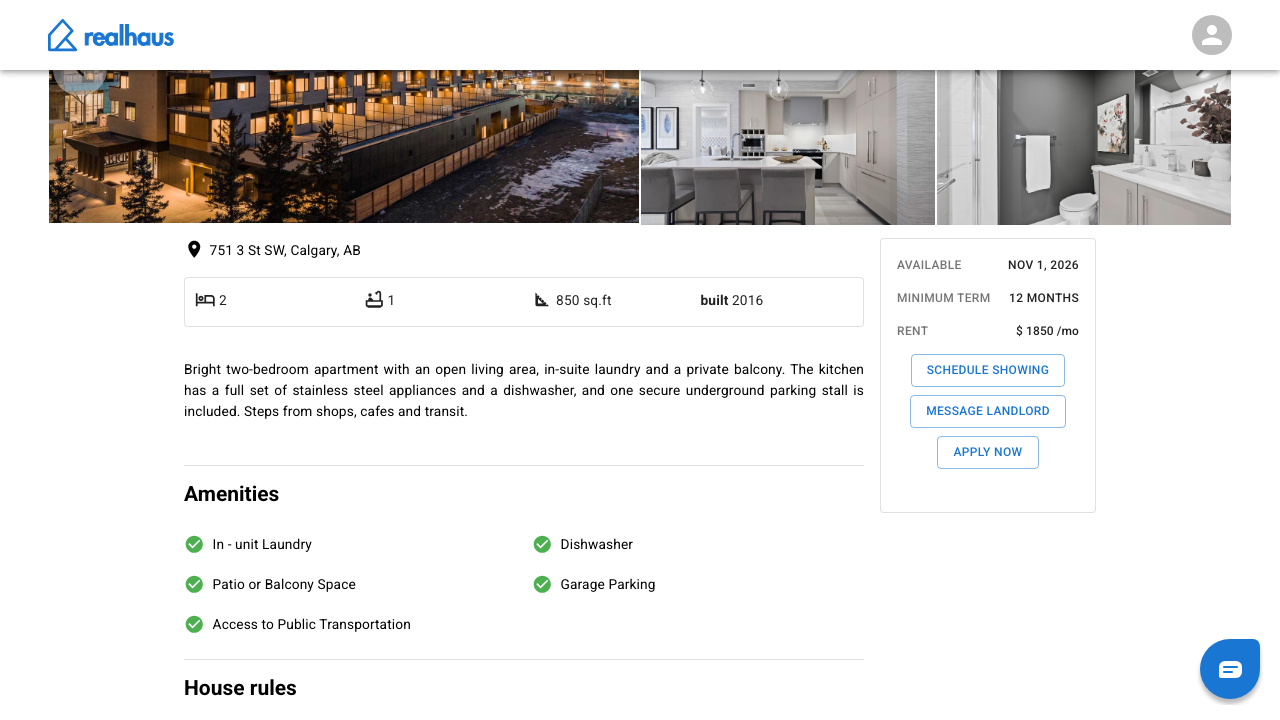
Select a card to open the listing. It shows:
- Back, and a breadcrumb of province, city and neighbourhood links that start a new search.
- The photos. Select one to see it larger, then use the arrows to flip through them.
- The address, bedrooms, bathrooms, size and year built, then the description.
- A box on the right with Available, Minimum Term and Rent, plus Schedule Showing, Message Landlord and Apply Now.
- Amenities, House rules, Ratings and Reviews, and a Location map.
Note: Schedule Showing, Message Landlord and Apply Now ask you to finish your account setup first if you haven’t verified your identity and completed your profile. If you’ve already applied, the box says “You applied to this listing on” and the date instead of Apply Now.
Step 6: Save a listing for later
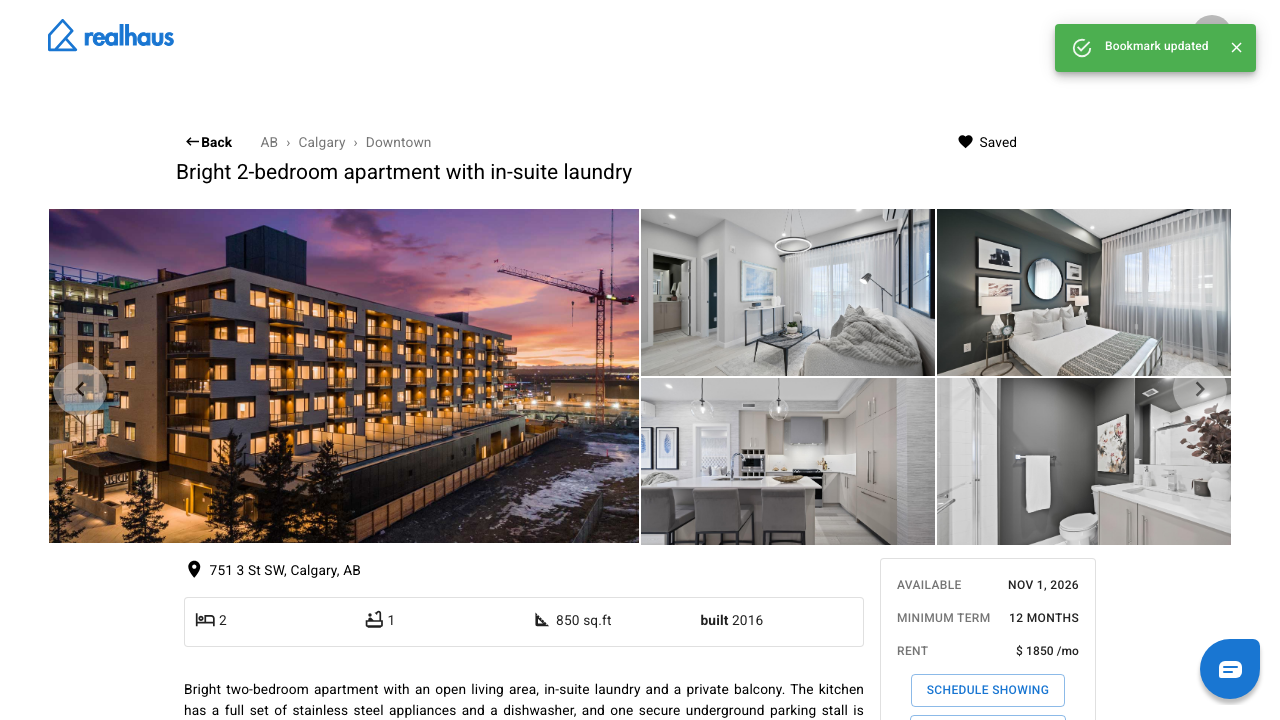
Select Save at the top right of the listing. You’ll see Bookmark updated and the button changes to Saved. Select Saved again to remove it. You can also select the heart on a card in the results.
Find everything you’ve saved under Bookmark in the menu.
What to do next
- Ready to apply? See How to submit a rent application.
- See every tenant guide in Renting on Realhaus.
Need help? Contact us at hello@realhaus.ca.