

This guide is for landlords who have chosen a tenant from a rental application. By the end, you will have accepted the application and filled in a draft lease, ready to send for signature. Realhaus asks for a verified identity and a complete profile when you open applications, review a lease and send it, so do both first. To receive rent through Realhaus you also need to connect your bank account in Account, Financials, Bank (a separate guide, coming soon).
Step 1: Accept the application
- Select Applications in the menu, or go to app.realhaus.ca/m/prospective-tenants, and select the applicant's card. To check an applicant first, see how to review applications and screen applicants.
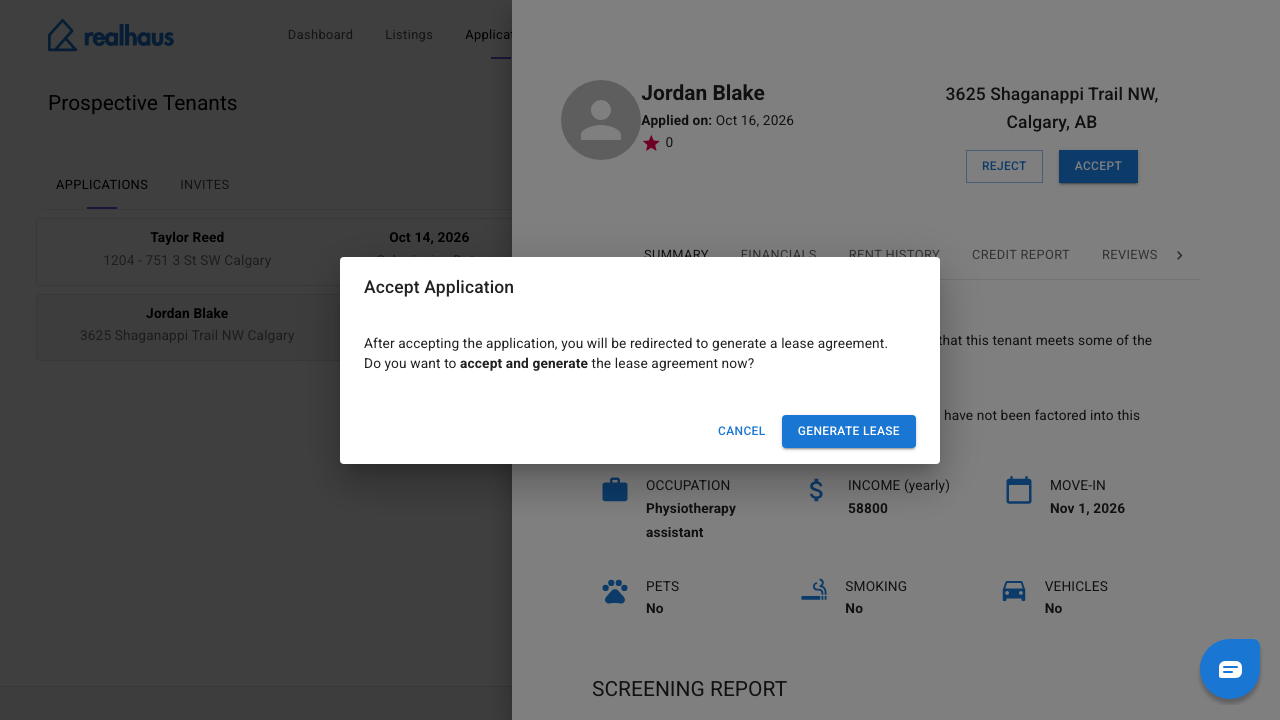
- Select Accept. Realhaus asks whether you want to accept and generate the lease agreement now. Select Generate Lease.
The application is approved, a draft lease is created from it, and the lease wizard opens on the Leases page. It takes a few seconds.
Important: Accepting an application also takes the property off the market, and Realhaus doesn't tell you. See Step 7 to list it again.
Step 2: Check the lease term
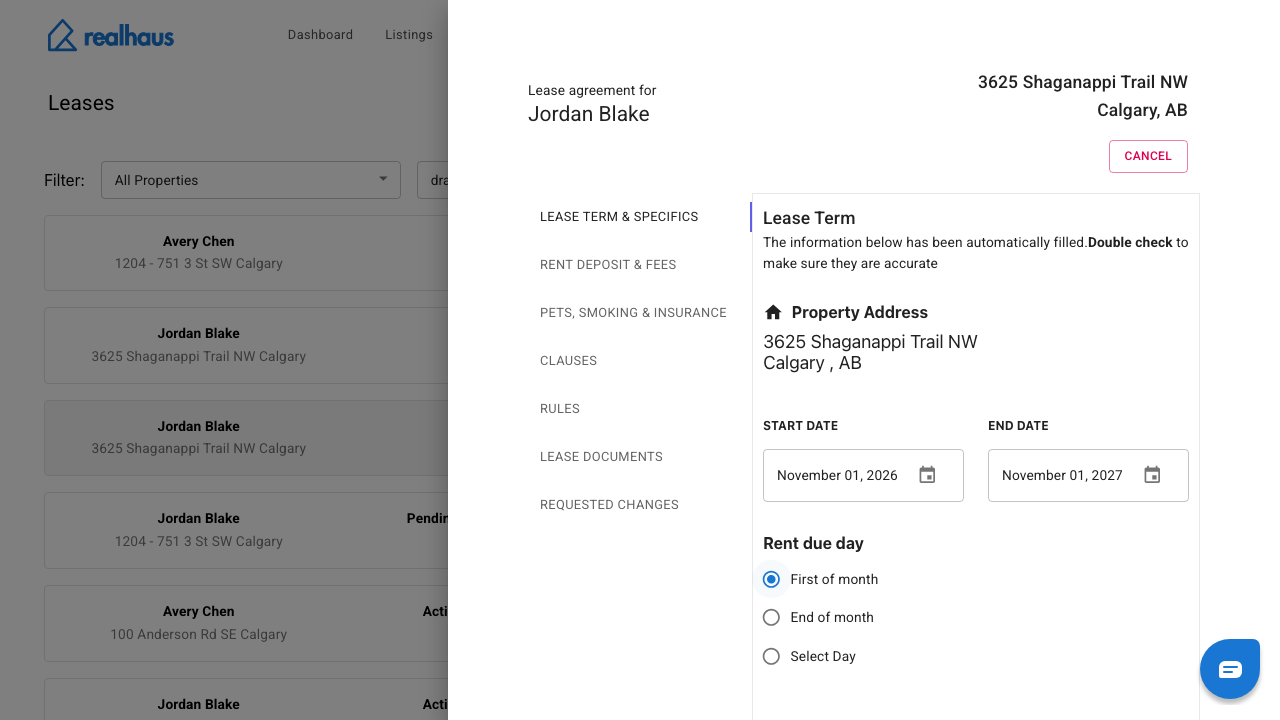
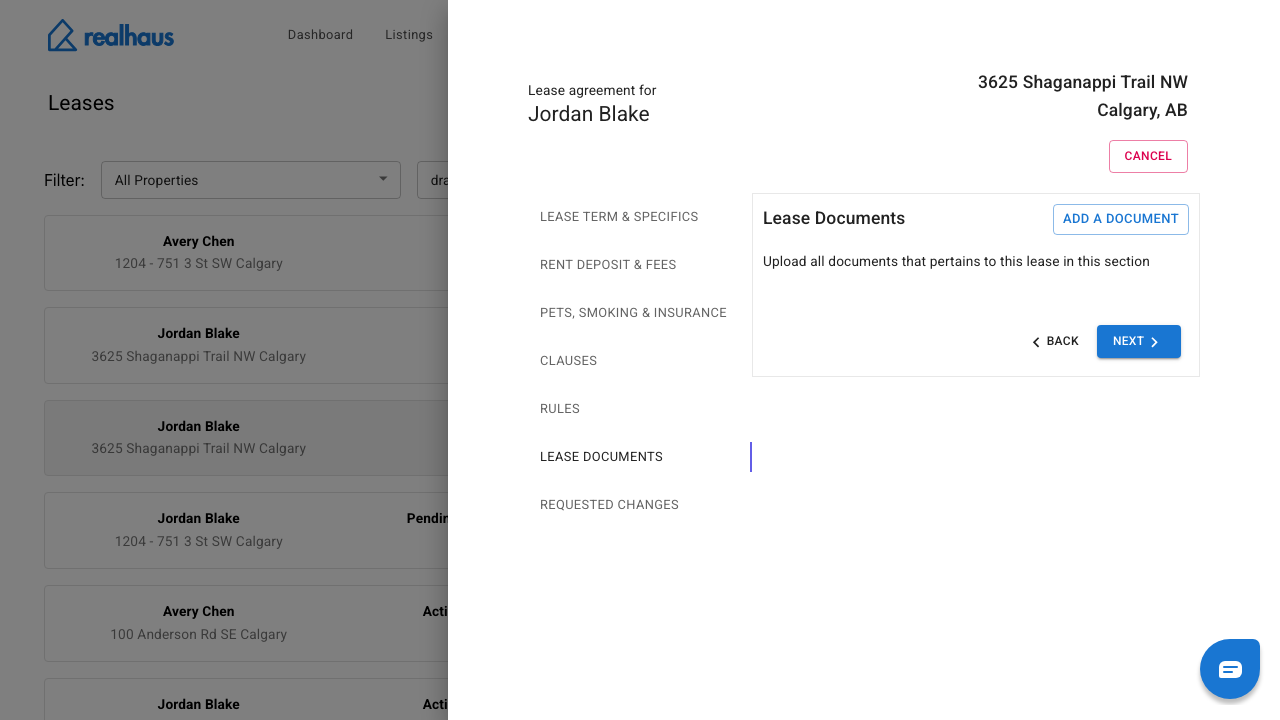
The wizard has a section for each part of the lease, listed on the left. Realhaus fills in the draft from the application and your listing, and asks you to double check it.
- Check the Property Address, START DATE and END DATE. Select the calendar icon to change a date.
- Under Rent due day, choose First of month, End of month, or Select Day and pick a day from 2 to 28.
Important: Rent due day can start with Select Day chosen and no day picked. Choose one before you go on.
Step 3: Set the rent, deposit and fees
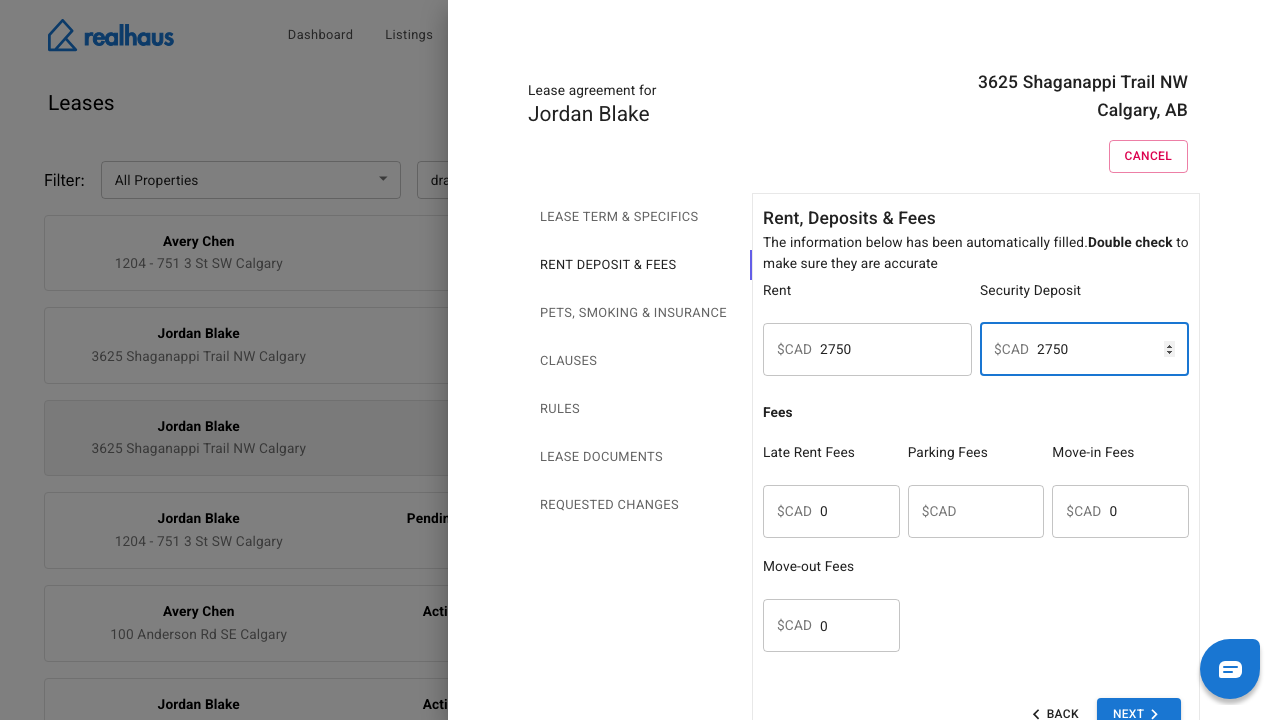
Select Rent Deposit & Fees. Rent and Security Deposit start from your listing's terms. Under Fees, enter any Late Rent Fees, Parking Fees, Move-in Fees or Move-out Fees.
Note: Realhaus limits the amount of a single payment. If the rent or deposit is above the limit, the field shows Amount cannot exceed and the limit, and you can't go on to Review.
Step 4: Set your policies
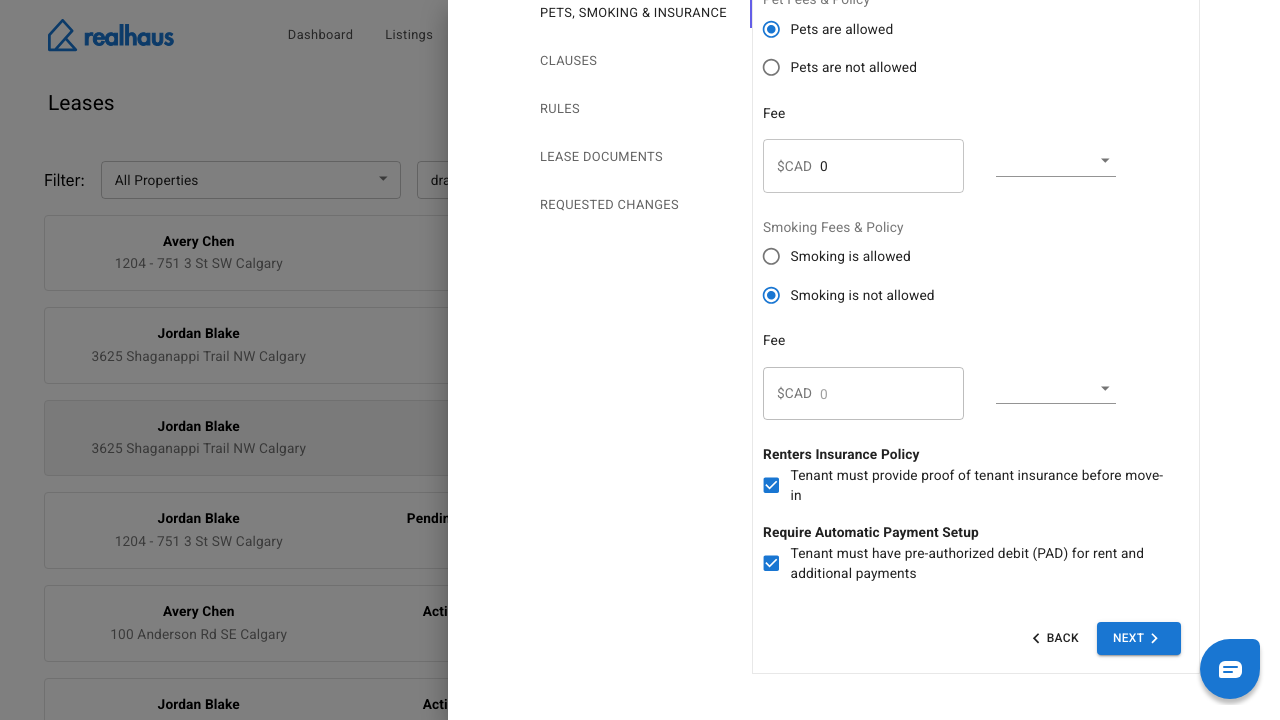
Select Pets, Smoking & Insurance.
- Under Pet Fees & Policy and Smoking Fees & Policy, choose whether each is allowed and enter any fee and how often it is charged. The choices start from the house rules on your listing.
- Tick Tenant must provide proof of tenant insurance before move-in to ask for proof of renters insurance. It starts ticked.
- Under Require Automatic Payment Setup, tick Tenant must have pre-authorized debit (PAD) for rent and additional payments if you want your tenant to set up Auto-Pay. A lease made from an application starts with this ticked. Tenants set it up after they sign, once you have connected your bank account: see how to set up Auto-Pay.
Step 5: Add clauses, rules and documents
- Clauses: Realhaus fills in the standard clauses it has for your province (this Alberta draft has none). Select Add a Clause, then enter a title and the text.
- Rules: house rules such as noise levels or barbecuing. Select Add a Rule.
- Lease Documents: select Add a Document to upload anything else that belongs with the lease.
Requested Changes stays empty until your tenant asks for a change to a lease you have sent.
Step 6: Review the lease
Select REVIEW… on the last section. Realhaus shows the whole agreement, built from what you entered. Read it through, and select BACK to change anything. Your changes are saved to the draft automatically, a couple of seconds after you make them.
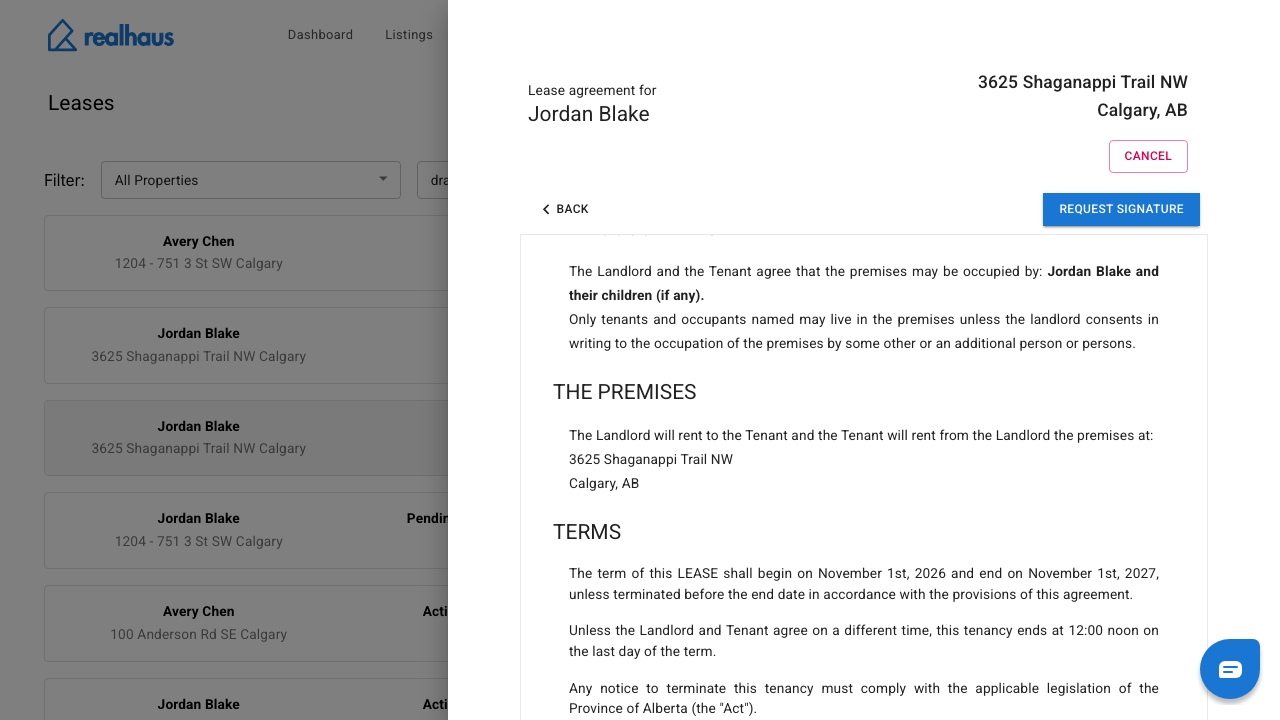
Important: Request Signature sends the lease to your tenant. Realhaus warns that you can't make changes after that, so only select it once you're happy. Sending is covered in how to send a lease for signature and handle change requests.
Step 7: Find your draft and list the property again
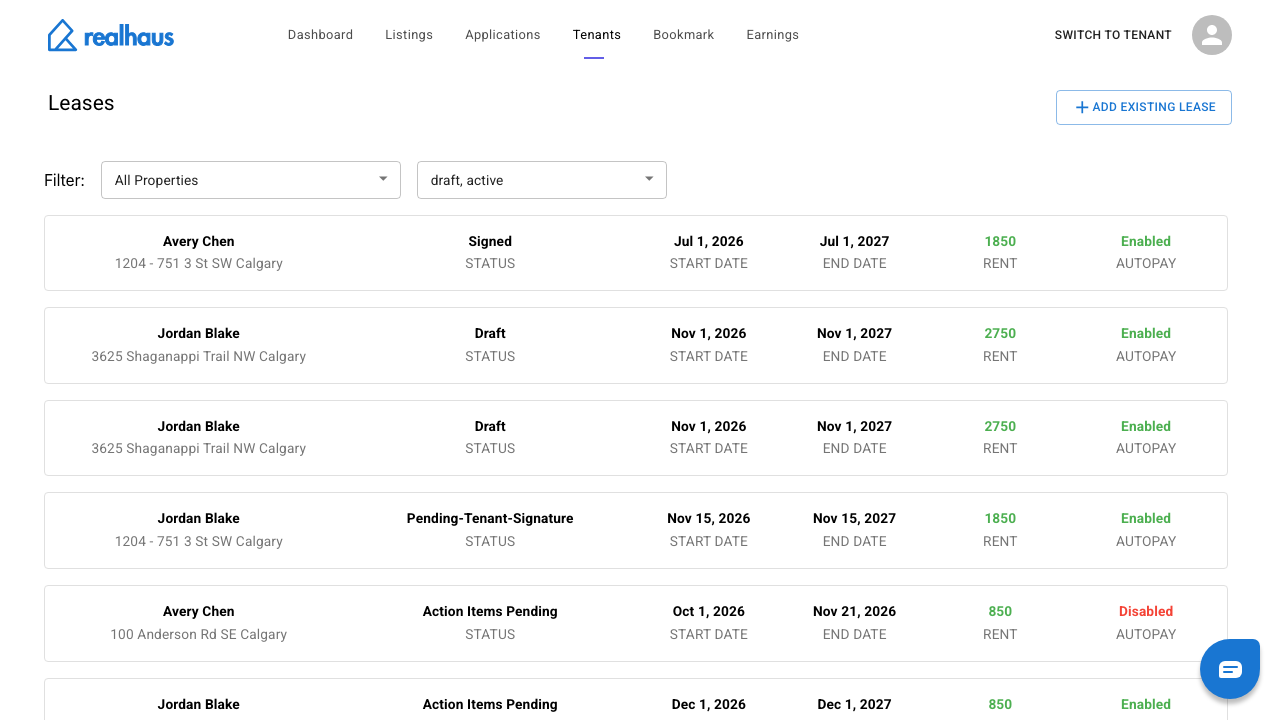
Select Tenants in the menu, or go to app.realhaus.ca/m/tenants. The new lease is on the Leases page with the status Draft. Select it to reopen the wizard.
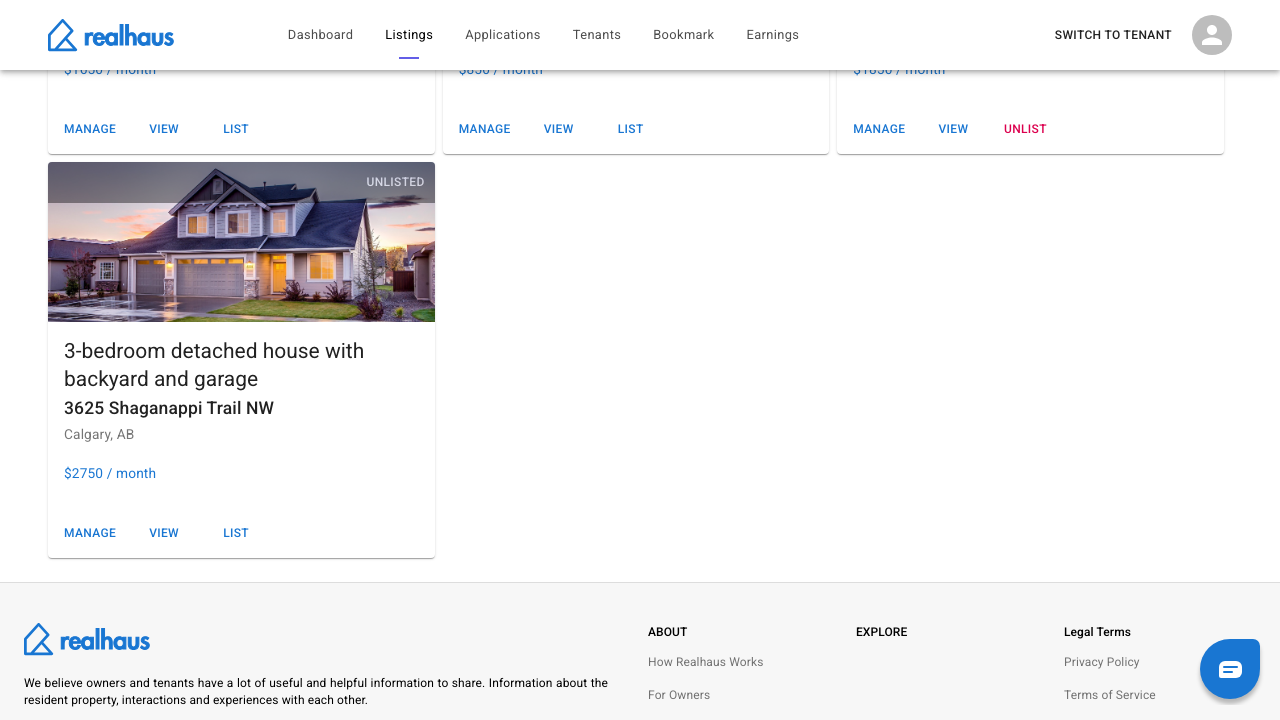
Then open Listings. The property now shows UNLISTED, so renters can't find it in search. When you want new applications, select List on its card.
What to do next
- Learn how to send a lease for signature and handle change requests.
- See every landlord guide in Managing on Realhaus.
- If you're the tenant, see how to review, request changes to, and sign your lease.
Need help? Contact us at hello@realhaus.ca.